User Guide
Deep Dives
How to get AI-generated definitions and answers for any term or question surfaced during your meeting.
Deep Dives are the “tell me more” surface of MeetIQ. When Key Terms or Questions & Context flag something worth understanding, a Deep Dive is the on-demand card that unpacks it — pulling definitions, related conversation, and context from your connected tools.
What you’ll learn
- Recognize the Deep Dive pane and where it appears in the recording view.
- Trigger a Deep Dive by clicking a Key Term or a detected question.
- Control response length (Brief, Standard, Detailed) from Settings.
Walkthrough
-
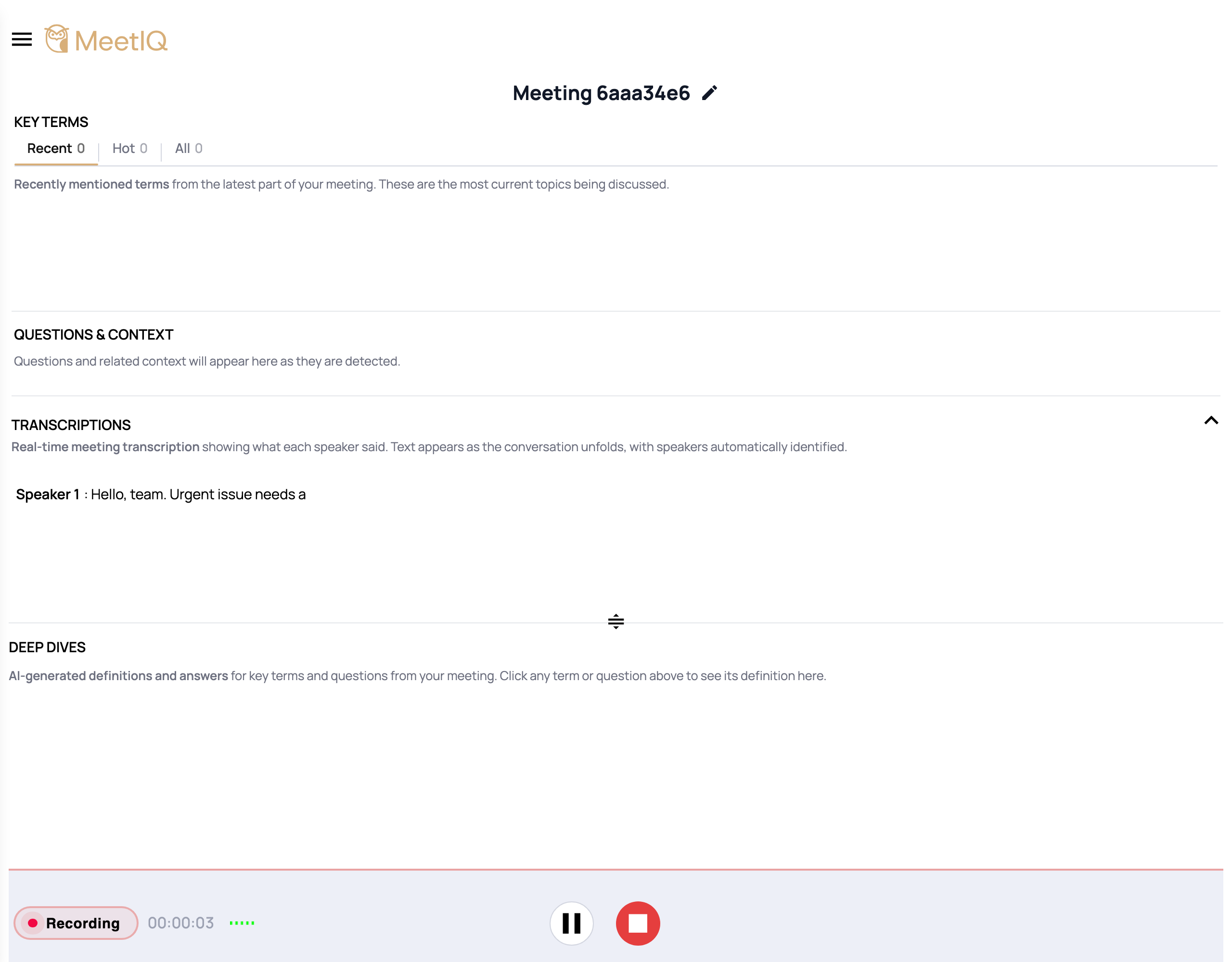
Locate the Deep Dive pane. In the recording view, it sits in the bottom pane, separated from Key Terms and Questions & Context by a resizable divider. Until you interact with it, the pane shows the hint “Click any term or question above to see its definition here.”
-
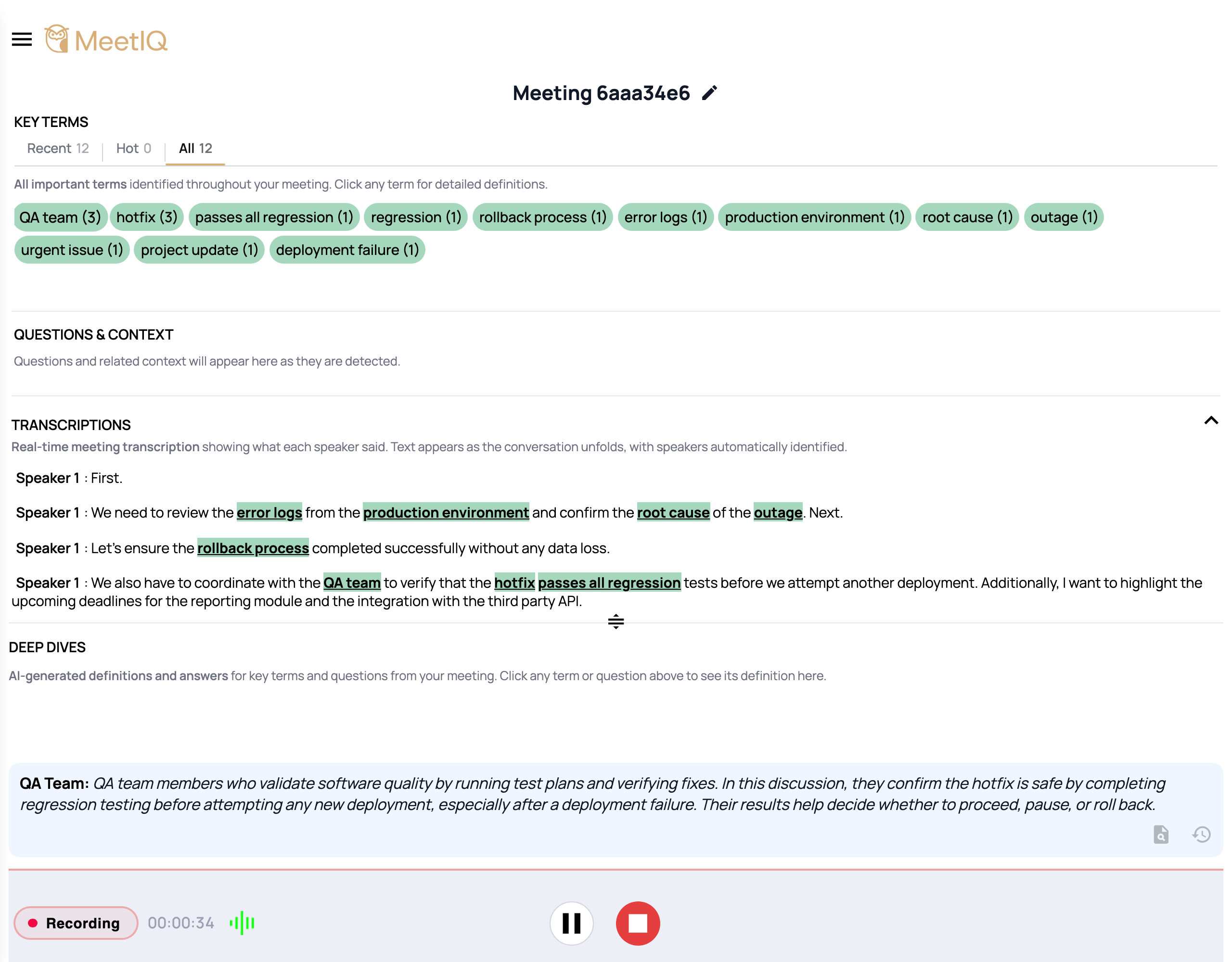
Click a Key Term or a detected question. Either triggers a Deep Dive for that item. The card renders in the bottom pane with the answer.
-
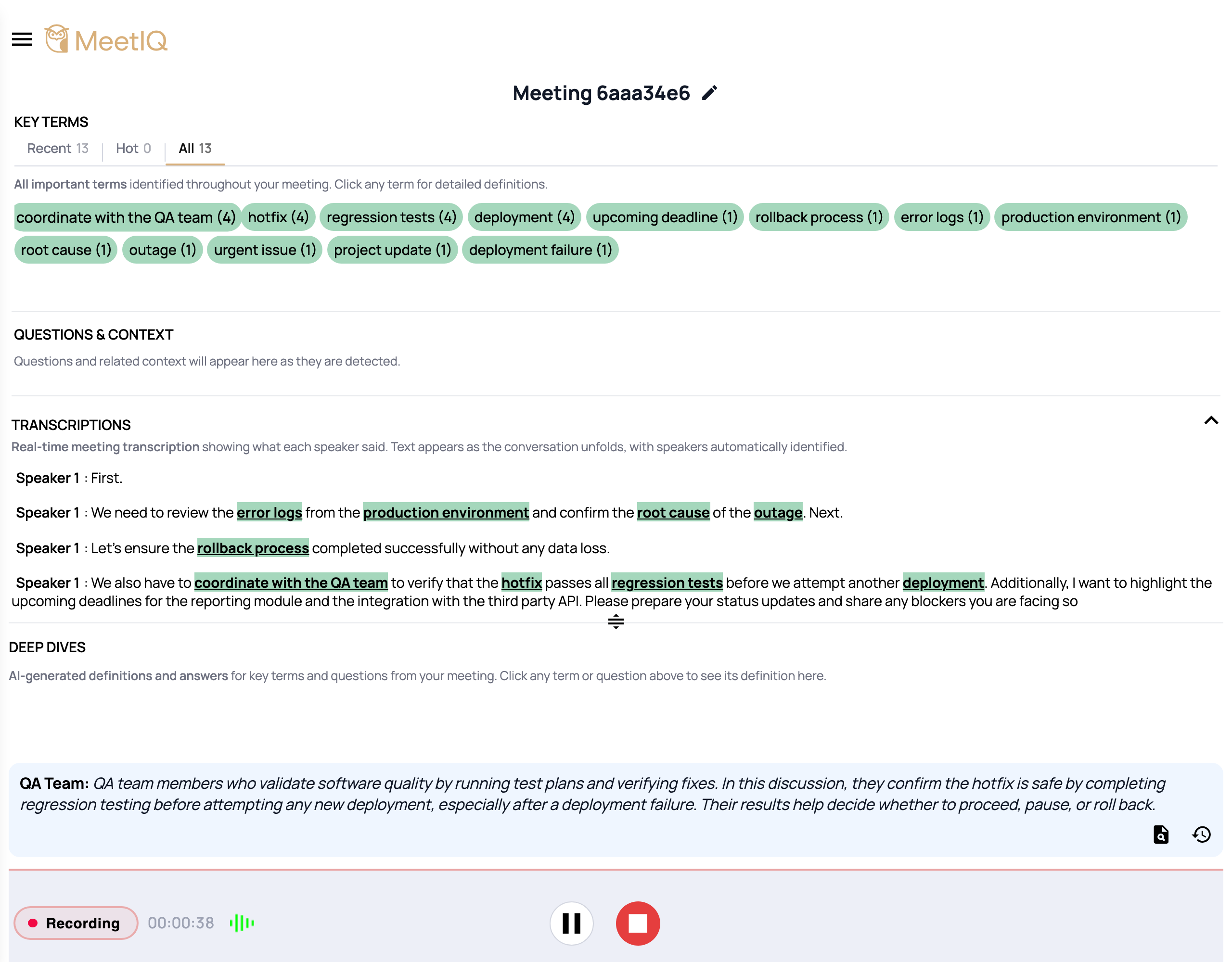
Iterate on the answer. Every Deep Dive card has two controls at the top — Extend adds more detail on top of what’s already there, and Refresh regenerates the whole answer from scratch.
How it works
Deep Dives are generated on demand — nothing runs until you click a term or a question. The response is built from three inputs: the item you clicked, the surrounding transcript, and records from your connected 3P integrations. That grounding is why Deep Dives cite their sources instead of guessing from thin air.
The response length setting under Settings → Response Length controls how verbose Deep Dives are by default. Brief keeps them to the key points, Standard balances context and brevity, Detailed produces a thorough answer with more analysis. Change it once and every subsequent Deep Dive uses the new setting; you don’t need to reset per-meeting.