User Guide
Questions & Context
How MeetIQ surfaces questions raised during your meeting and pulls grounded context for them from your connected tools.
Questions & Context surfaces the questions being raised in your meeting by the meeting itself — MeetIQ listens to the transcript, spots questions as they come up, and lists them in the panel. You don’t type your own; you click a detected one to pull context.
What you’ll learn
- Recognize the Questions & Context panel and its empty state.
- Understand that MeetIQ auto-detects questions from the transcript — the panel has no input field.
- Click a detected question to pull grounded context from your connected tools.
Walkthrough
-
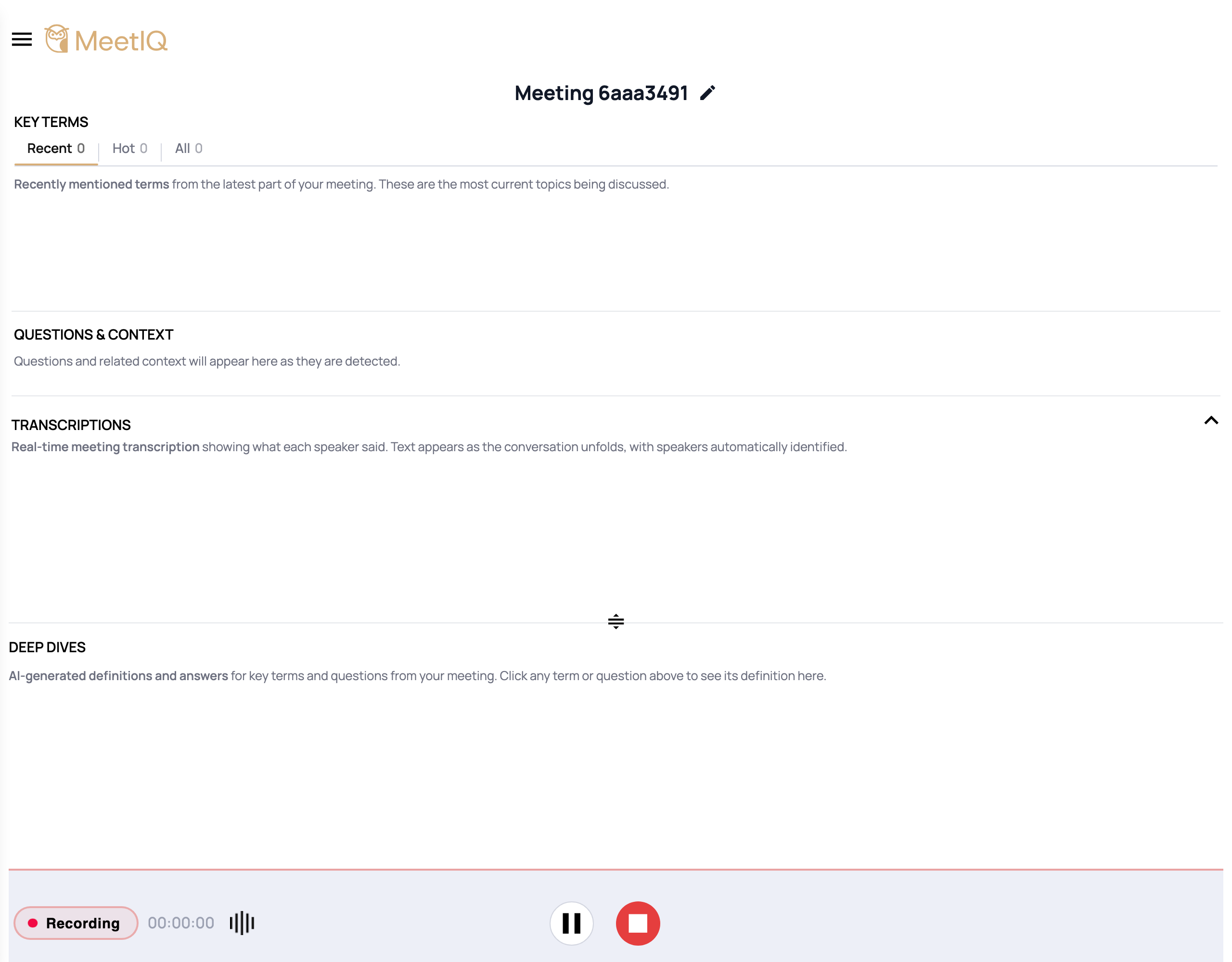
Find the Questions & Context panel. In the recording view, it sits just below Key Terms and above the live Transcription panel. Until MeetIQ detects a question, the panel shows the message “Questions and related context will appear here as they are detected.”
-
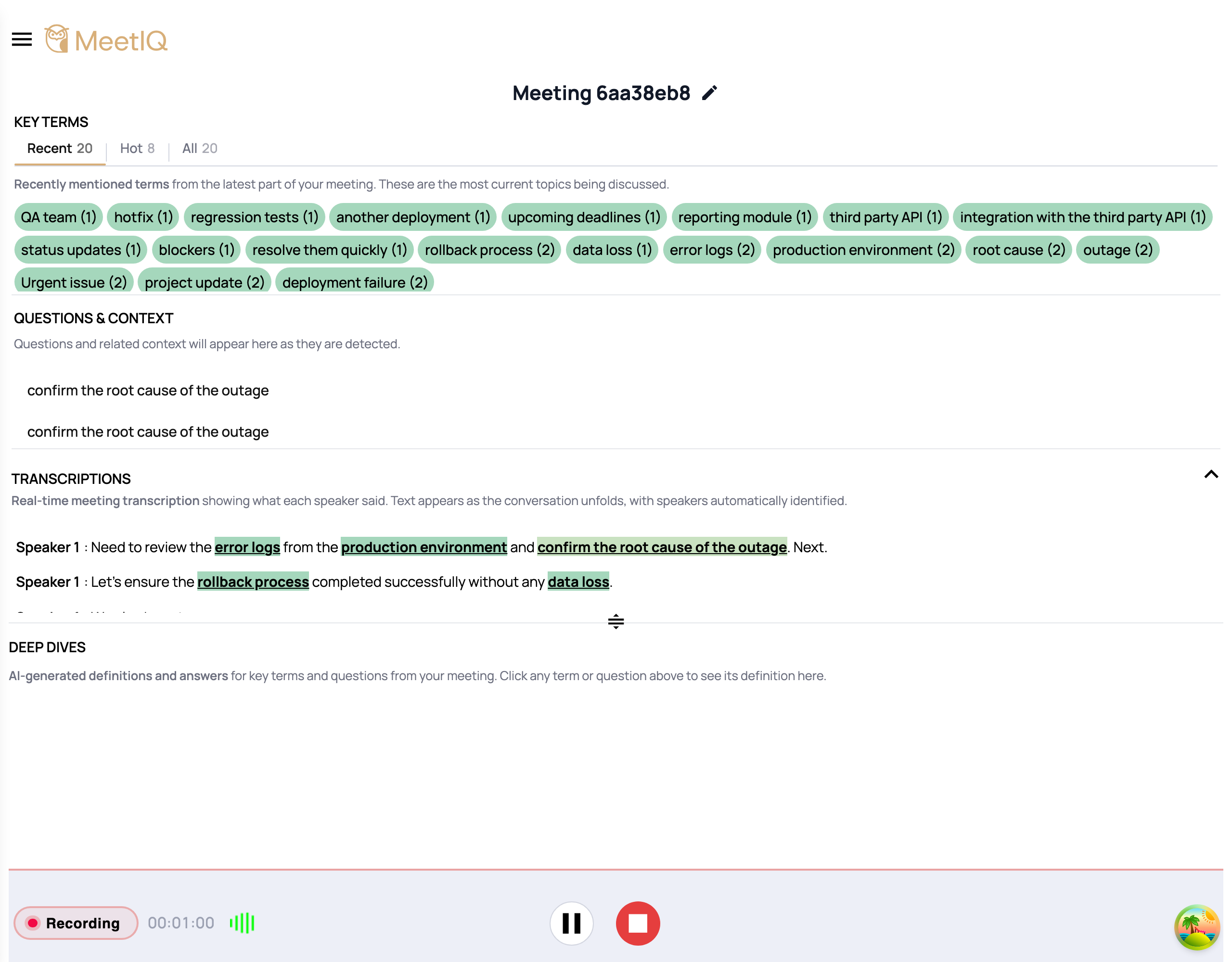
Let the meeting run. When someone asks a question — spoken aloud in the meeting — MeetIQ picks it up from the transcript and adds it to the panel. Newer questions appear at the top.
-
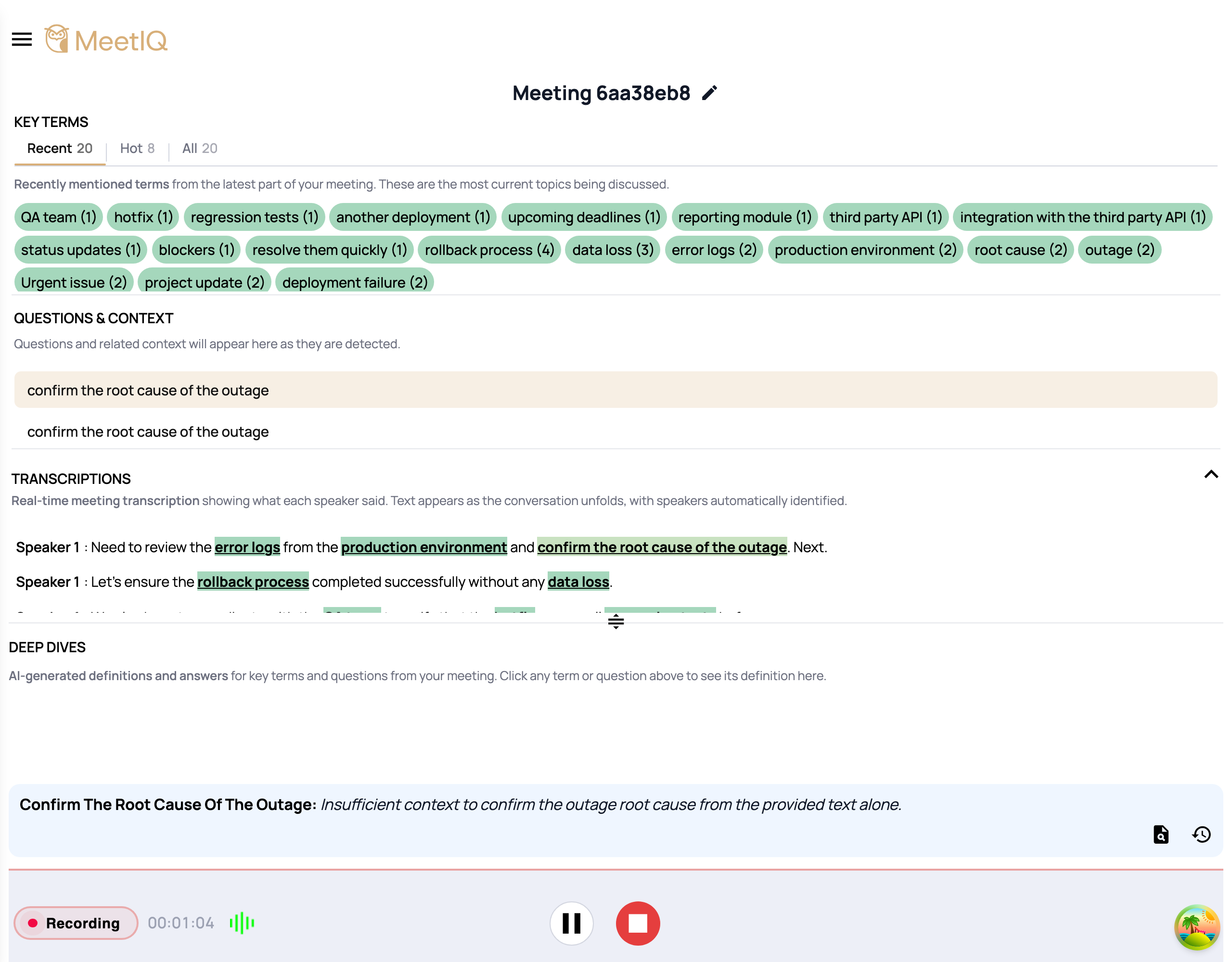
Click a detected question. MeetIQ runs it through the same context pipeline Key Terms uses and pulls a grounded answer from whichever 3P integrations you’ve connected — Jira, Linear, Gmail, and so on.
How it works
The Questions & Context panel is listen-only. There’s no text input — MeetIQ decides what counts as a question by analyzing the live transcript, and the panel only shows what it detects. This is deliberate: the goal is to catch questions the meeting is already raising, not to become another chat interface layered on top of your call.
When you click one of the detected questions, MeetIQ retrieves relevant records from each connected tool, hands them to the model as context, and produces a short natural-language answer with citations. Nothing is guessed from thin air — if MeetIQ has no source that matches, it says so.