User Guide
Settings
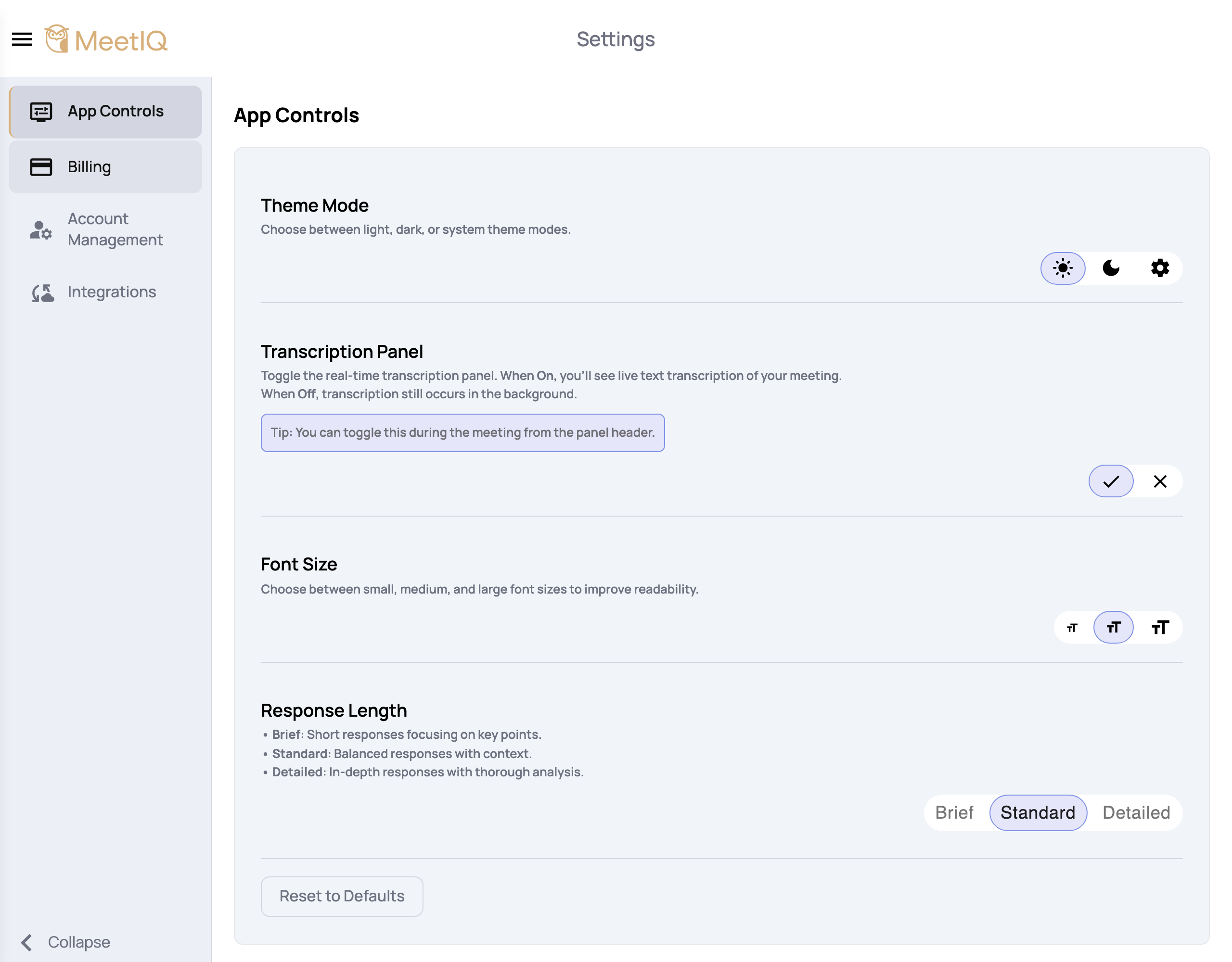
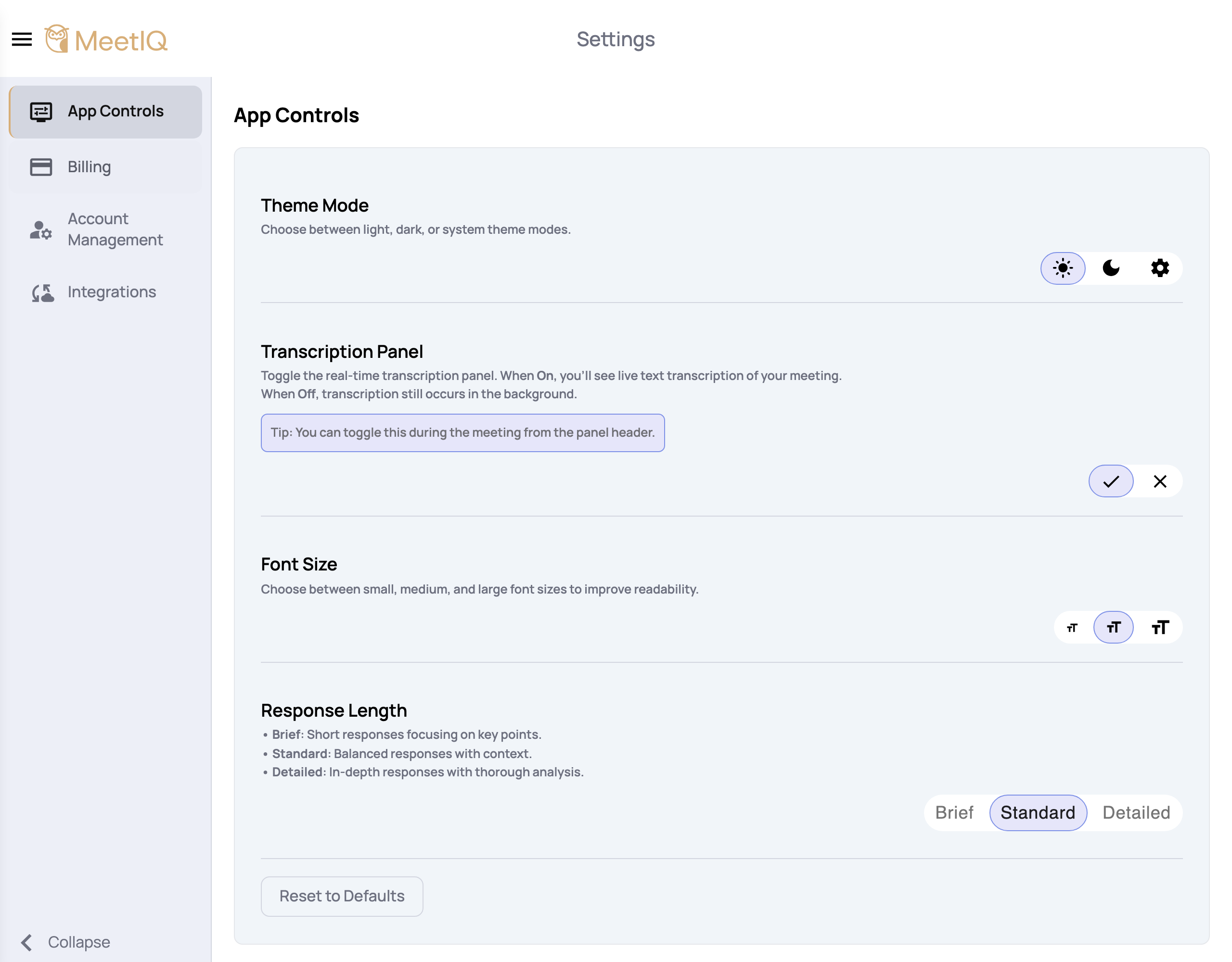
The Settings page — where to change theme, toggle the transcription panel, pick a Deep Dive response length, and access account + billing controls.
The Settings page is where the day-to-day preferences live. Most people set them once and forget them, but knowing what’s in there saves you a lot of time later.
What you’ll learn
- Open Settings from the burger sidebar.
- Find and change the most-used preferences (Theme, Transcription panel, Response Length).
- Know where account management, billing, and integrations live inside Settings.
Walkthrough
-
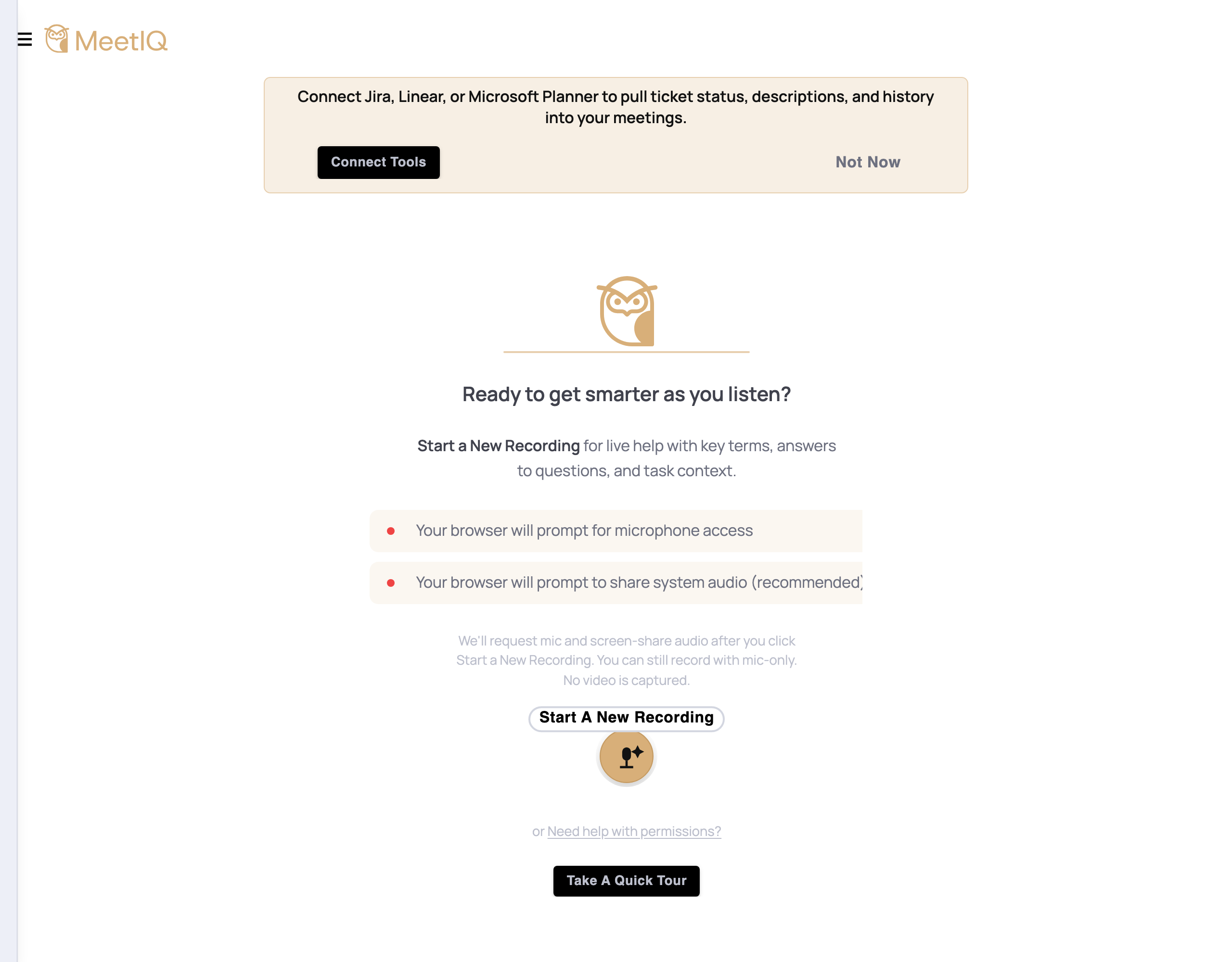
Open Settings. Click the burger icon in the top-left, then choose Settings from the sidebar.
-
Pick a Theme Mode. Three options — Light, Dark, and System. System follows your OS’s current setting, so if you switch to dark mode at night MeetIQ follows.
-
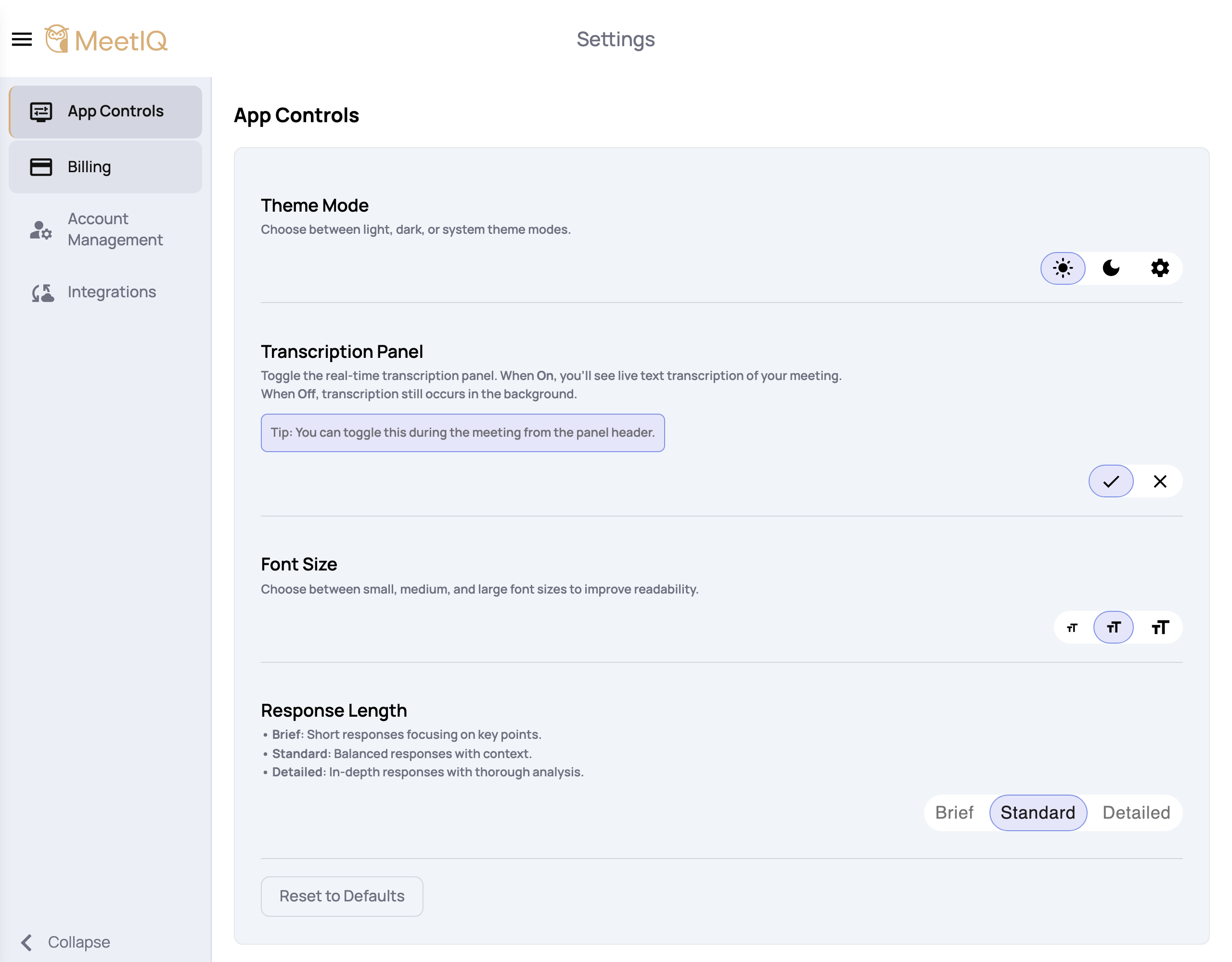
Toggle the Transcription Panel. On shows the live transcript alongside Key Terms and Questions & Context. Off hides the panel — but transcription itself keeps running in the background, so Key Terms and Deep Dives still work.
-
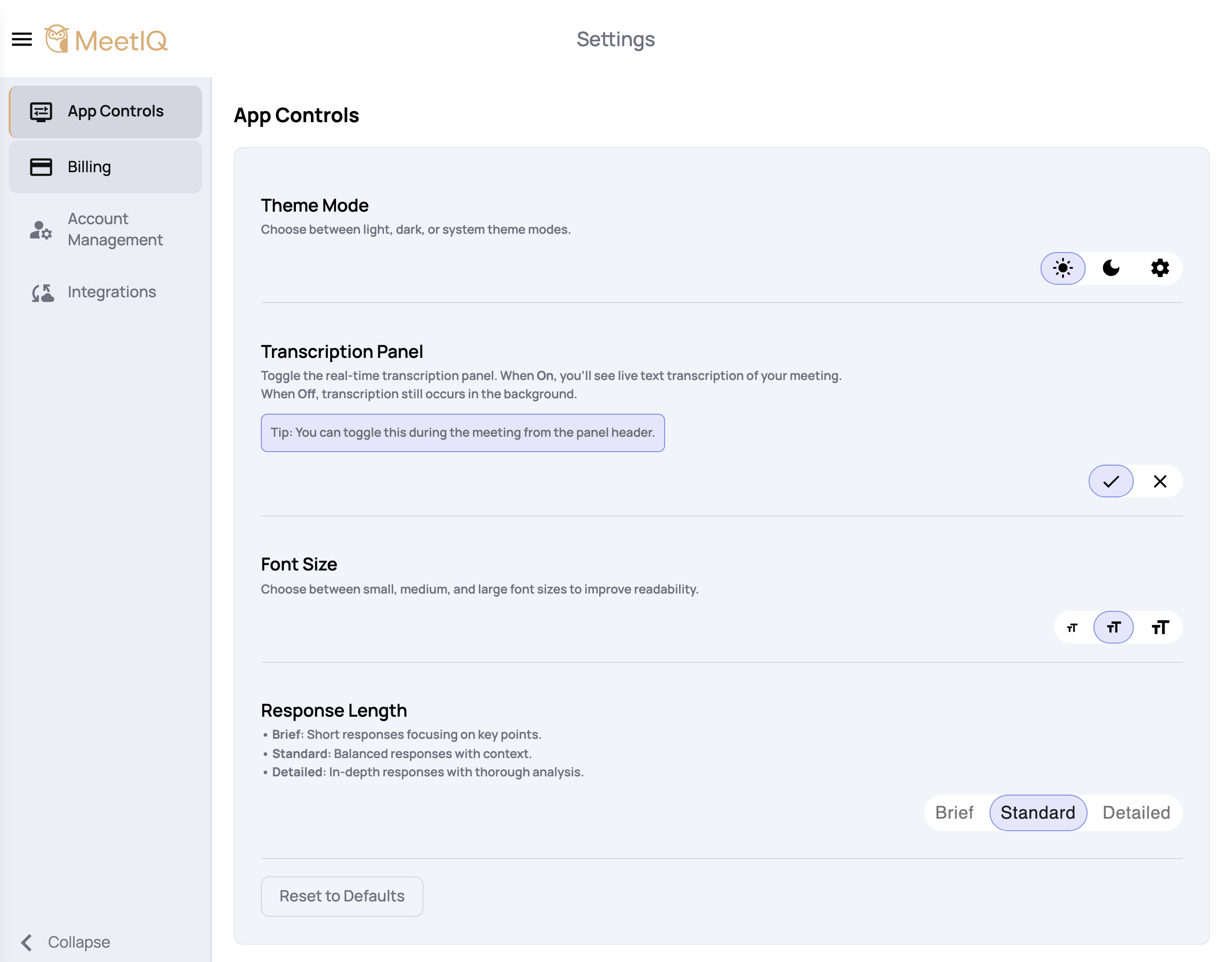
Pick a Response Length for Deep Dives. Brief keeps them to the key points, Standard balances context and brevity, Detailed gives you thorough analysis. Applies globally — every new Deep Dive uses this setting.
-
Use the tabs to switch sections. Settings is organized into App (the preferences above), Integrations (see Integrations), Account (profile + delete account), and Billing (plan + payment).
How it works
Preferences persist across app launches and across any device where you’re signed in with the same MeetIQ account, so changing your theme on your Mac laptop follows you to your Windows desktop.
The Transcription Panel toggle is a UI-only setting — turning it off doesn’t turn transcription off. MeetIQ still captures and analyzes audio in the background, which means Key Terms and Deep Dives keep working even when the panel is hidden. Use this if the live transcript is distracting during meetings you want to just skim later.