User Guide
Troubleshooting
Quick fixes for the most common issues — audio permissions, sign-in loops, missing integration data, and where to get further help.
Most first-time issues fall into one of four buckets — audio permissions, sign-in, integration sync, or “I can’t find X.” Here’s how to work through each before escalating to support.
What you’ll learn
- Resolve microphone or screen-recording permission issues on macOS.
- Recover from a Google sign-in that hangs or fails.
- Diagnose an integration stuck in Synchronizing or showing Sync failed.
- Know how to reach human support and what info to include.
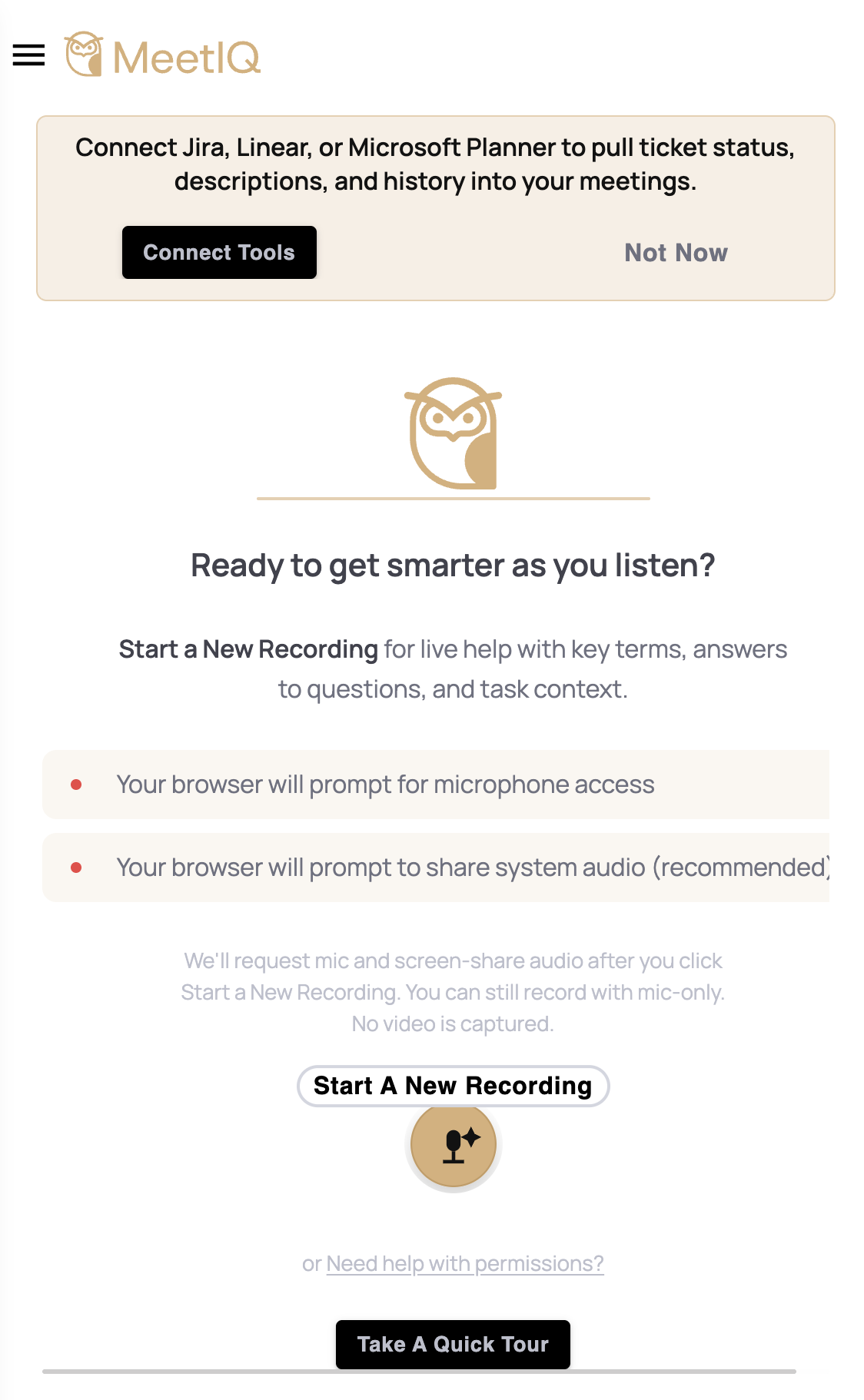
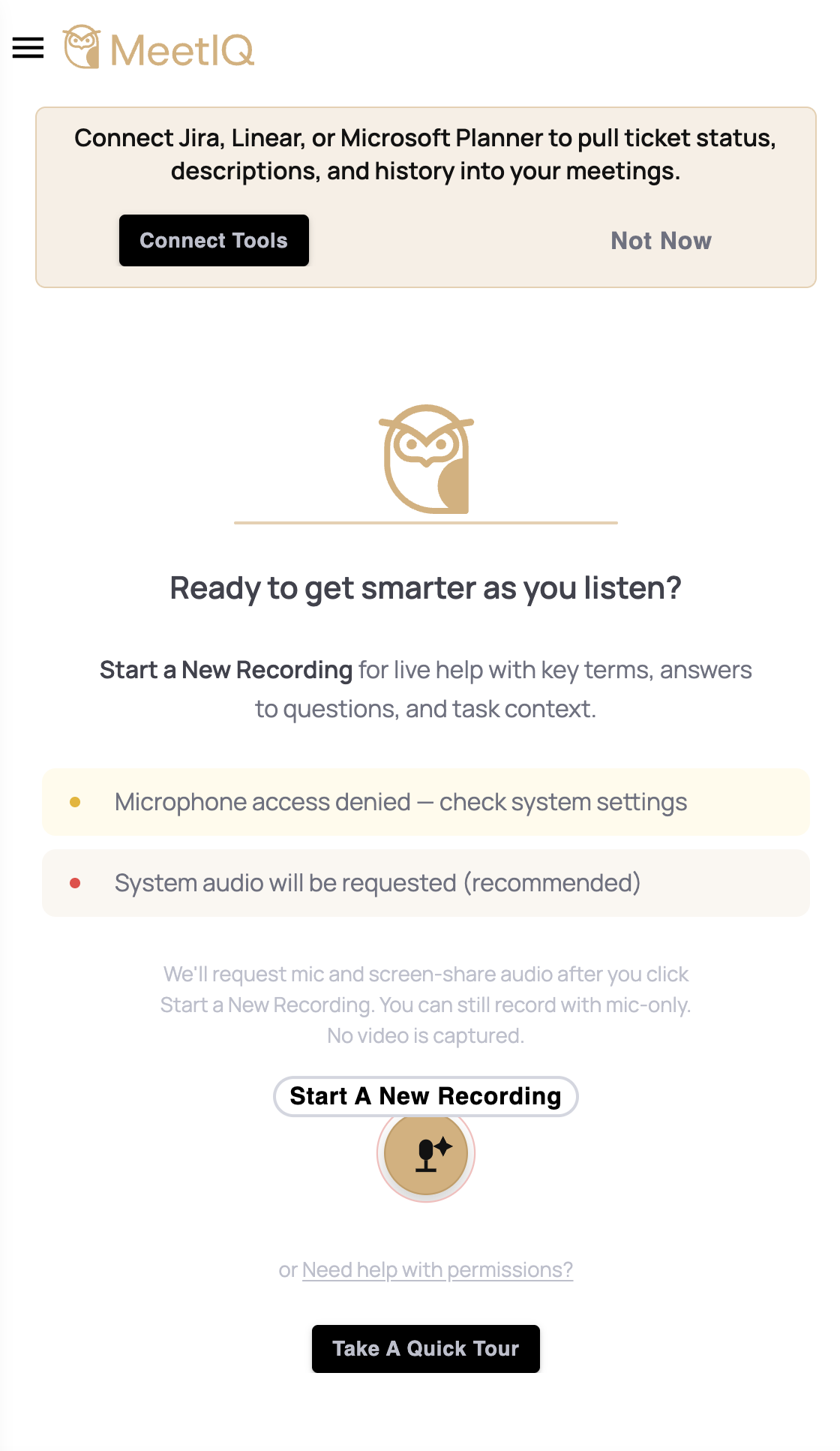
MeetIQ isn’t picking up my microphone or the other participants’ audio
MeetIQ needs two permissions on macOS — Microphone (to capture what you say) and Screen Recording (to capture what the other participants say through your speakers, since macOS treats that as part of the screen-share pipeline). On Windows and Linux, the microphone prompt at first launch is usually enough.
To check macOS permissions:
- Open System Settings → Privacy & Security → Screen Recording, make sure MeetIQ is listed and its toggle is on.
- Do the same for Microphone in the same section.
- If MeetIQ isn’t in the list at all, the prompt hasn’t fired yet — start a recording once and macOS will ask.
On Windows
Windows handles both permissions inline — no System Settings visit needed. When MeetIQ first tries to capture, the browser’s built-in microphone prompt appears; approve it. System-audio capture piggy-backs on the same runtime and doesn’t need a separate OS toggle.
If you don’t hear participants transcribed, check that MeetIQ isn’t running under a restricted user profile — Group Policy overrides can silently block microphone access even when the prompt says granted.
On Linux
Microphone access is granted at the desktop-environment level (GNOME / KDE), and there’s no separate screen-recording capability the way macOS scopes it. PipeWire (or PulseAudio on older distros) handles both streams together. If MeetIQ can hear you but not the meeting audio, make sure the “monitor of default sink” source is enabled in pavucontrol (or your DE’s audio panel).
Google sign-in hangs or bounces me back to /login
MeetIQ opens Google sign-in in your default system browser — not inside the app — so passkeys, 1Password, and YubiKey all work. After you complete sign-in in the browser, you get bounced back to Electron via a meetiq:// deep link.
Things to check if this doesn’t work:
- MeetIQ must be your registered handler for
meetiq://links. It’s set automatically on install; you can test by pastingmeetiq://auth/callback?error=testinto a browser URL bar — the app should focus and show an error banner. - If sign-in loops between the app and the browser, refresh the browser tab and start again. The internal one-time code that bridges the two expires after 2 minutes.
- Signed-out state after a successful sign-in usually means your ad-blocker is stripping the redirect. Whitelist
meetiq.comif you’re on strict blocking.
An integration is stuck in Synchronizing or shows “Sync failed”
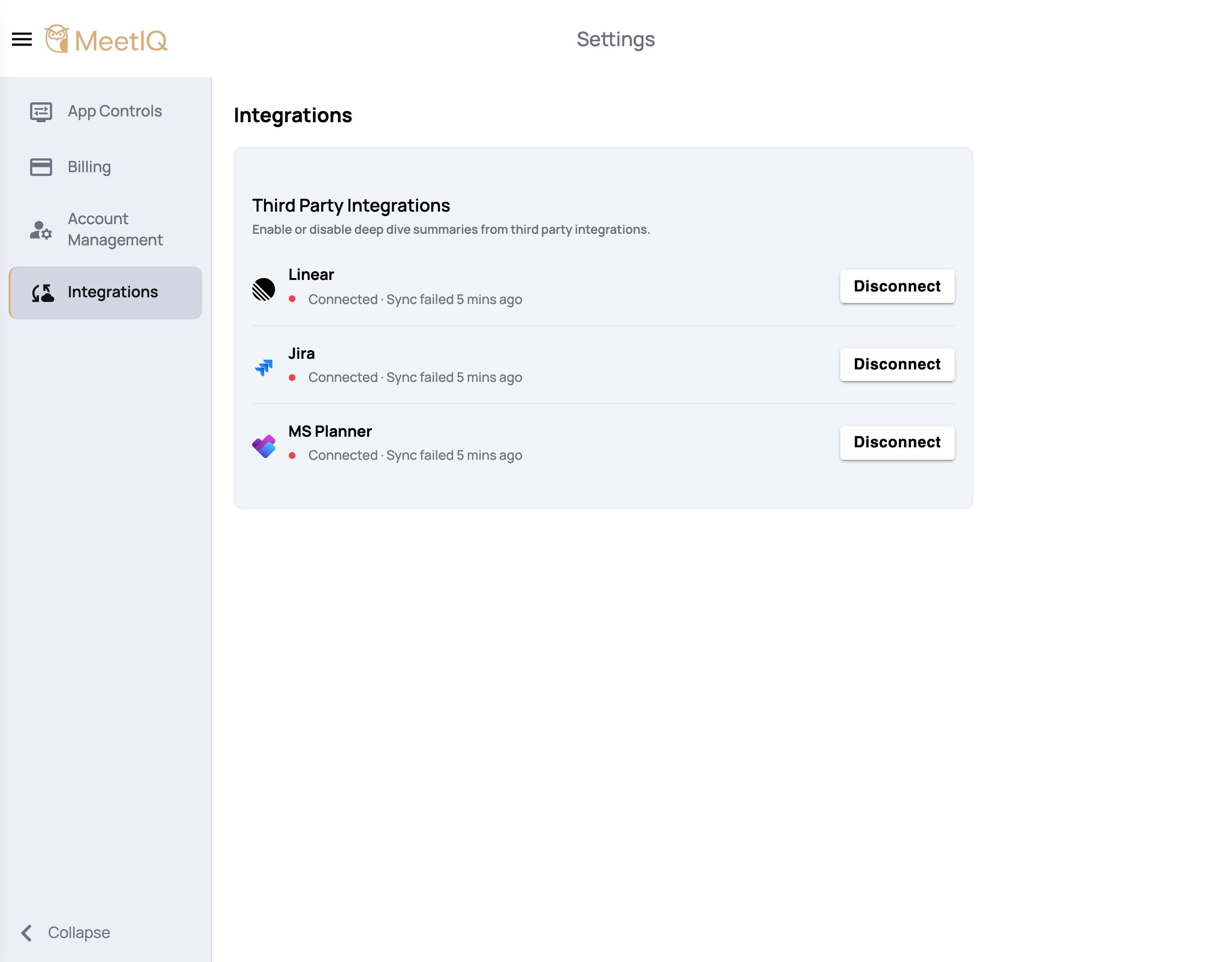
The status pill on each integration row (see Integrations) reflects the current state. Two states are worth understanding:
- Synchronizing for a while — MeetIQ pulls the initial workspace snapshot after you connect, which for large Jira or Linear workspaces can take a few minutes. If a row is still Synchronizing after 15 minutes, that’s a Lambda-side issue on our end — contact support.
- Connected · Sync failed — the last background refresh errored out. MeetIQ is still working with slightly stale data. Try Disconnect + Reconnect; if the failure persists, the tool’s OAuth token may have been revoked upstream (e.g., an admin removed the app in your Jira workspace).
I can’t find what I’m looking for
Click Support in the burger sidebar — it opens the in-app live chat. Please include:
- What platform you’re on (macOS/Windows/Linux + version).
- What you were doing when the issue happened (recording a meeting, connecting Jira, etc.).
- Any error message you saw, verbatim.
That’s usually enough for support to reproduce and fix.