User Guide
Integrations
Connect Jira, Linear, Planner, and other tools so MeetIQ can pull grounded context into Deep Dives and Questions & Context.
Integrations are how MeetIQ answers “what’s the status of MG-355?” mid-meeting — by pulling real records from your linked tools instead of guessing. Connect a tool once, and every subsequent Deep Dive and Question & Context lookup can draw on it.
What you’ll learn
- Find the Integrations page inside Settings.
- Connect a third-party tool via its OAuth flow.
- Read the row status indicator (Connected, Synchronizing, Disconnecting, Not connected, sync failed).
- Disconnect a tool cleanly when you no longer need it.
Walkthrough
-
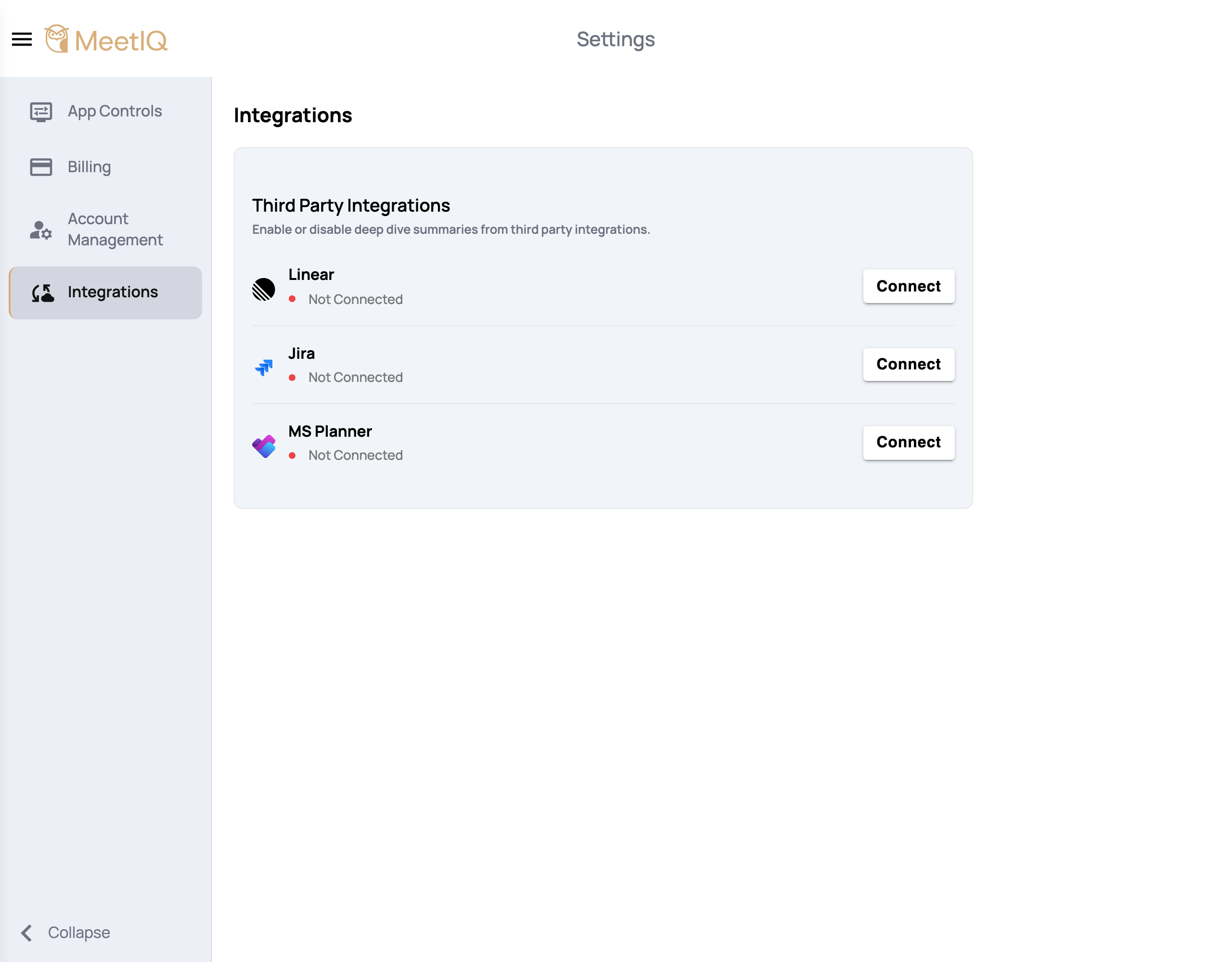
Open Settings → Integrations. Click the burger icon in the top-left, choose Settings, then the Integrations tab.
-
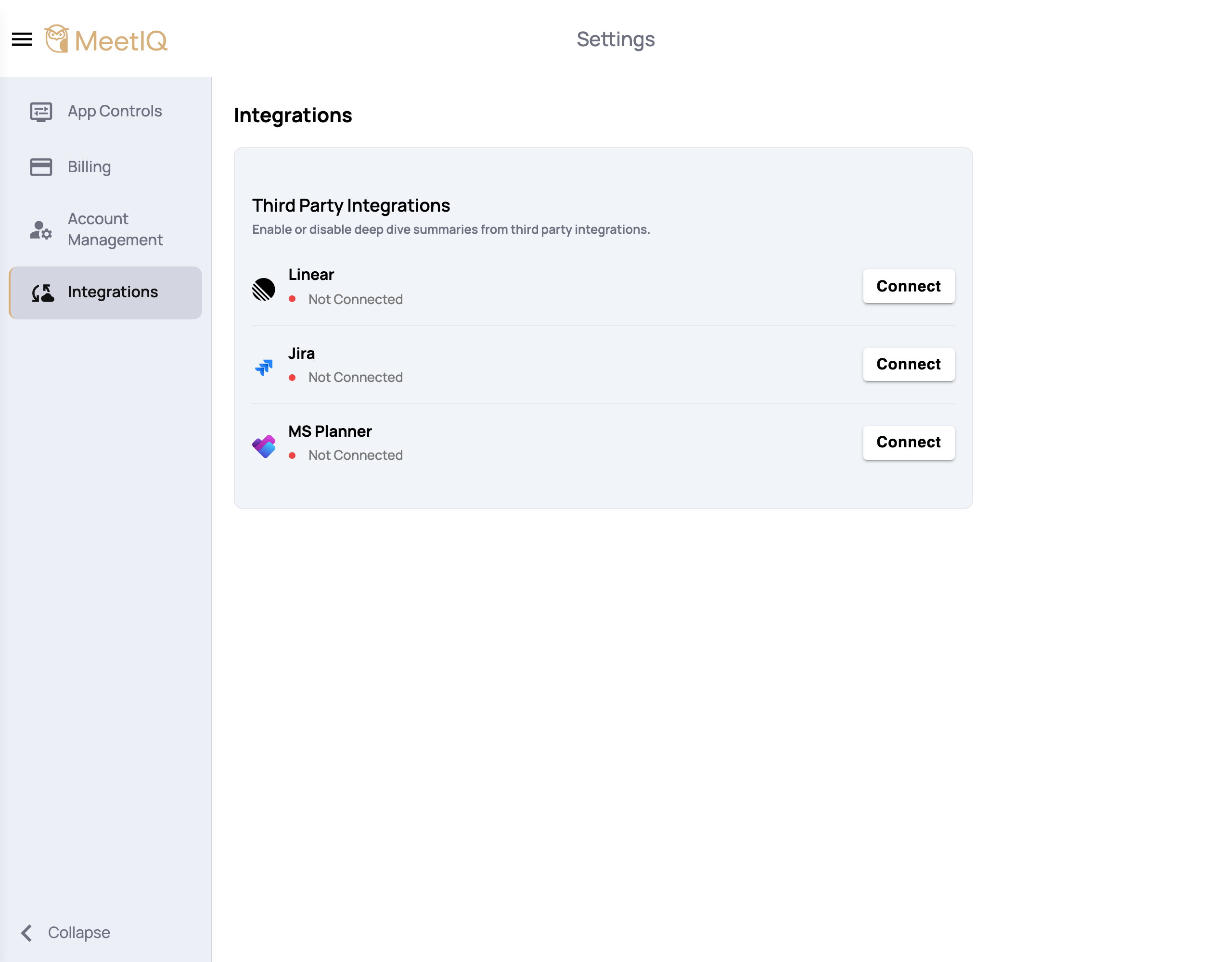
Click Connect on the tool you want to link. Currently supported tools include Jira, Linear, and Planner. A “Not connected” row shows the Connect button; a row that’s already linked shows Disconnect instead.
-
Complete the OAuth handoff. MeetIQ opens the tool’s own sign-in flow in a system-browser overlay. Grant access there — MeetIQ never sees your password.
-
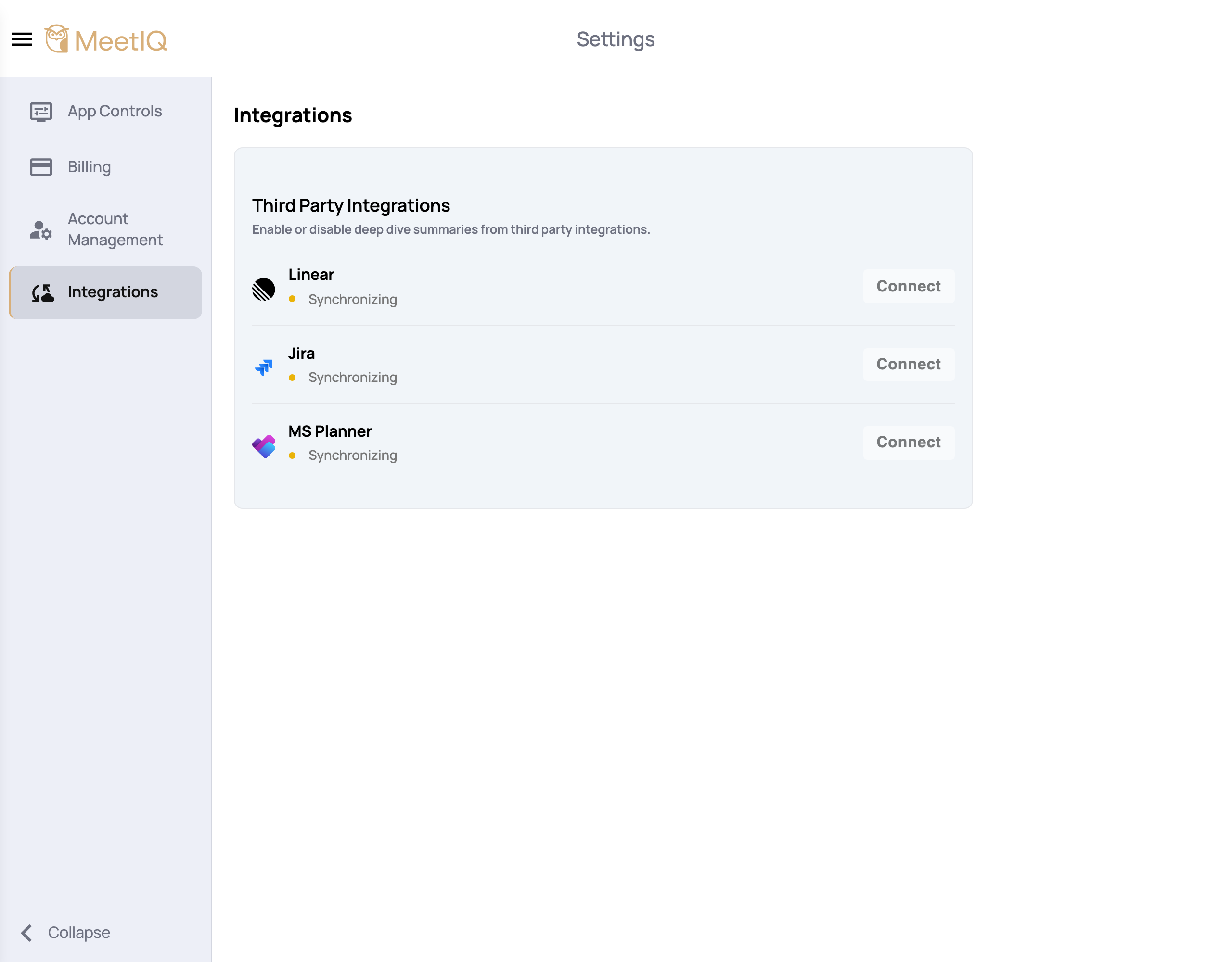
Wait for the initial sync. The row flips to “Synchronizing” while MeetIQ pulls initial context, then to “Connected” once the sync finishes. Depending on the size of your workspace, this can take a few minutes.
-
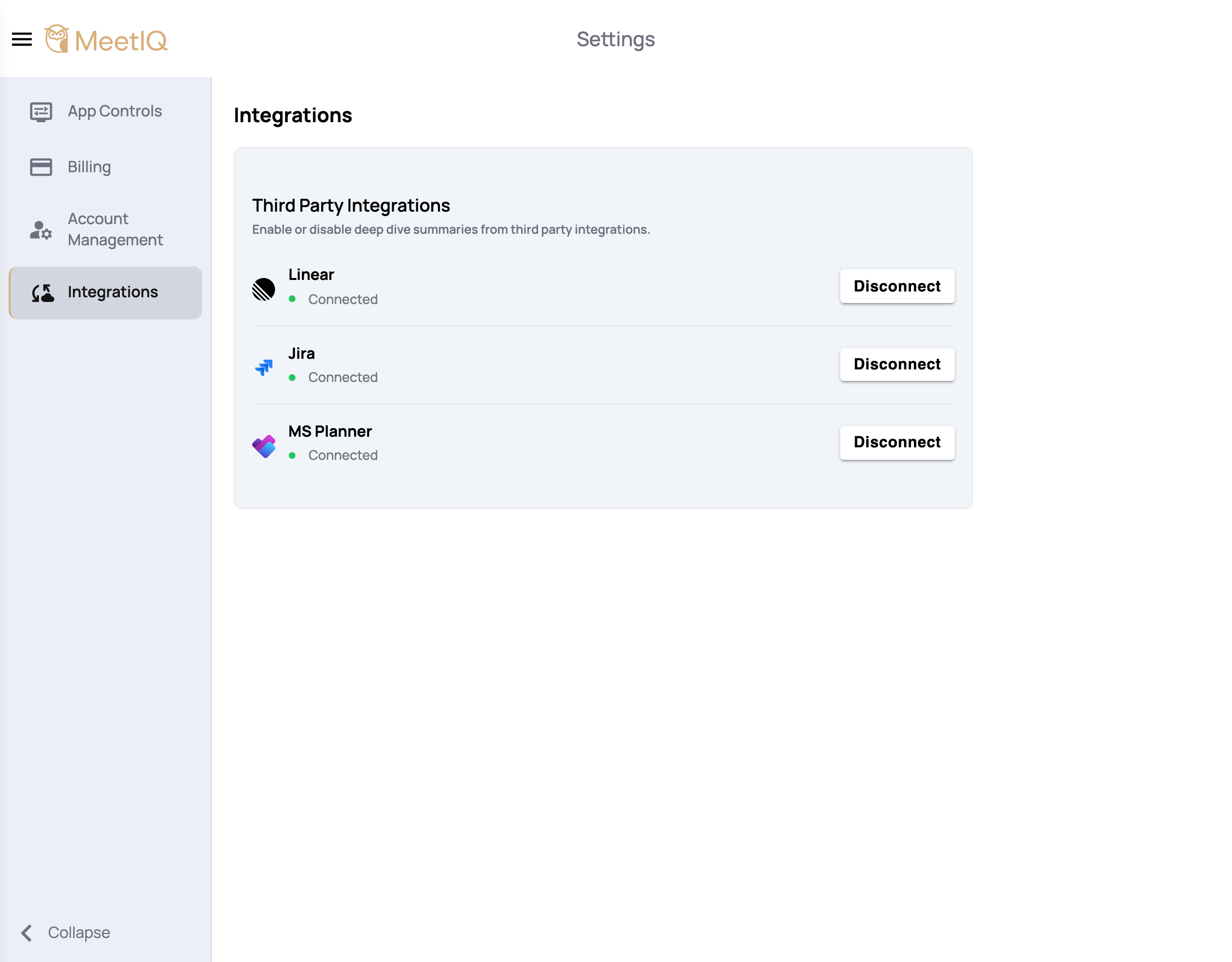
Click Disconnect if you no longer need it. The Disconnect button on a connected row revokes access. The row briefly shows “Disconnecting” before returning to “Not connected”.
How it works
Every integration uses standard OAuth 2.0 — MeetIQ redirects to the tool’s own sign-in page, you grant scoped access, and the tool hands MeetIQ a token it can use to fetch records on your behalf. Passwords never touch our system.
After you connect, MeetIQ pulls a snapshot of relevant records (issues, cycles, projects — depends on the tool) and keeps it fresh in the background. The row’s status pill reflects that: “Connected” means your data is up-to-date, “Synchronizing” means an initial or catch-up fetch is running, and “Connected · Sync failed” means the last refresh errored and MeetIQ is working with slightly stale data.
Deep Dives and Questions & Context only use tools that are currently in the “Connected” state — disconnected or failed integrations are skipped automatically.