User Guide
Meetings
How to revisit, review, and delete past recorded meetings.
Every recording you stop is saved as a meeting. The Meetings view is where you go to reopen one — read the transcript, revisit the key terms, or re-run Deep Dives against past discussion.
What you’ll learn
- Open the Meetings list from the sidebar and understand what appears there.
- Reopen a past meeting to review its transcript, Key Terms, and Deep Dives.
- Delete a meeting cleanly, including the confirmation flow.
Walkthrough
-
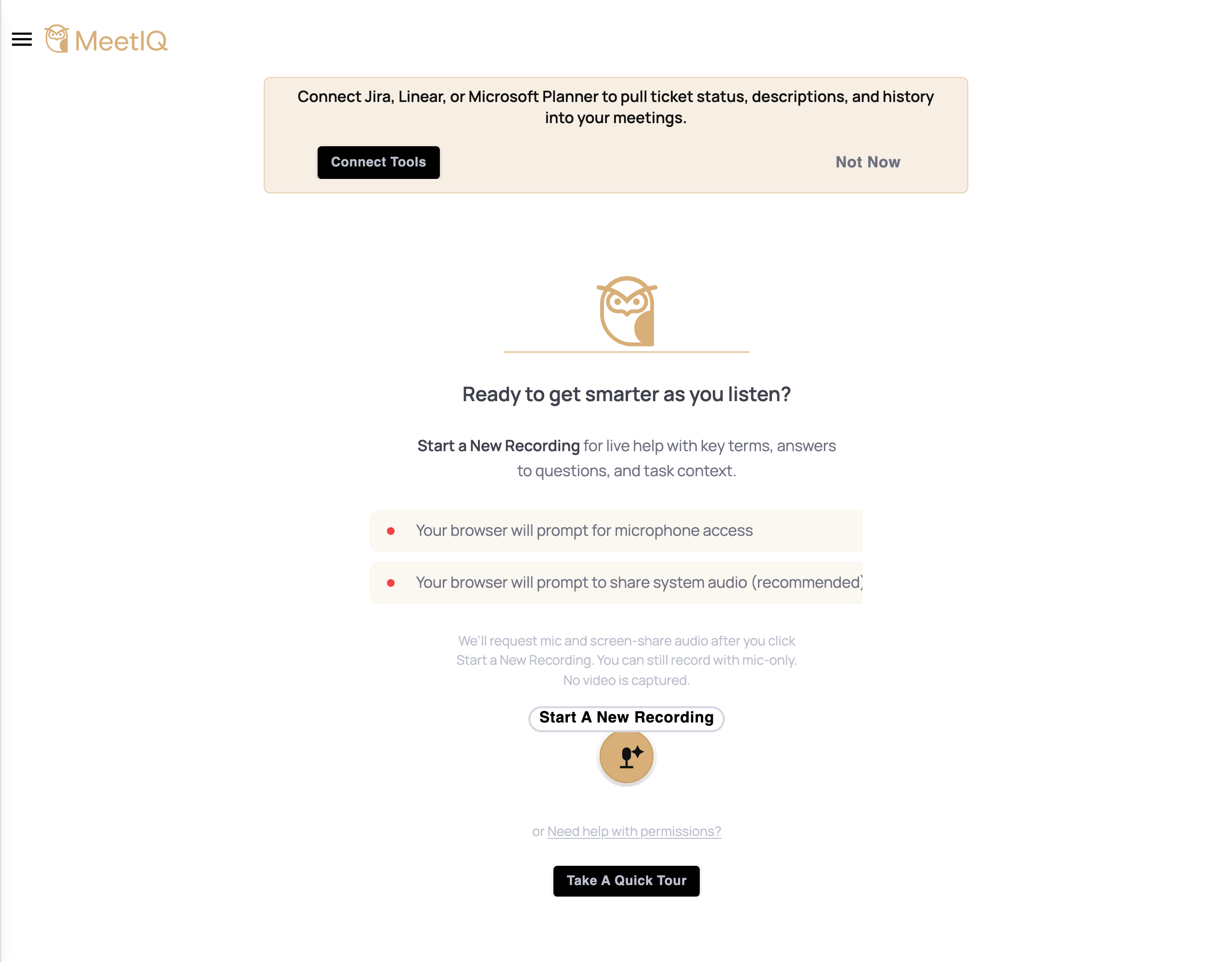
Open the Meetings list. Click the burger icon in the top-left, then “Meetings” in the sidebar.
-
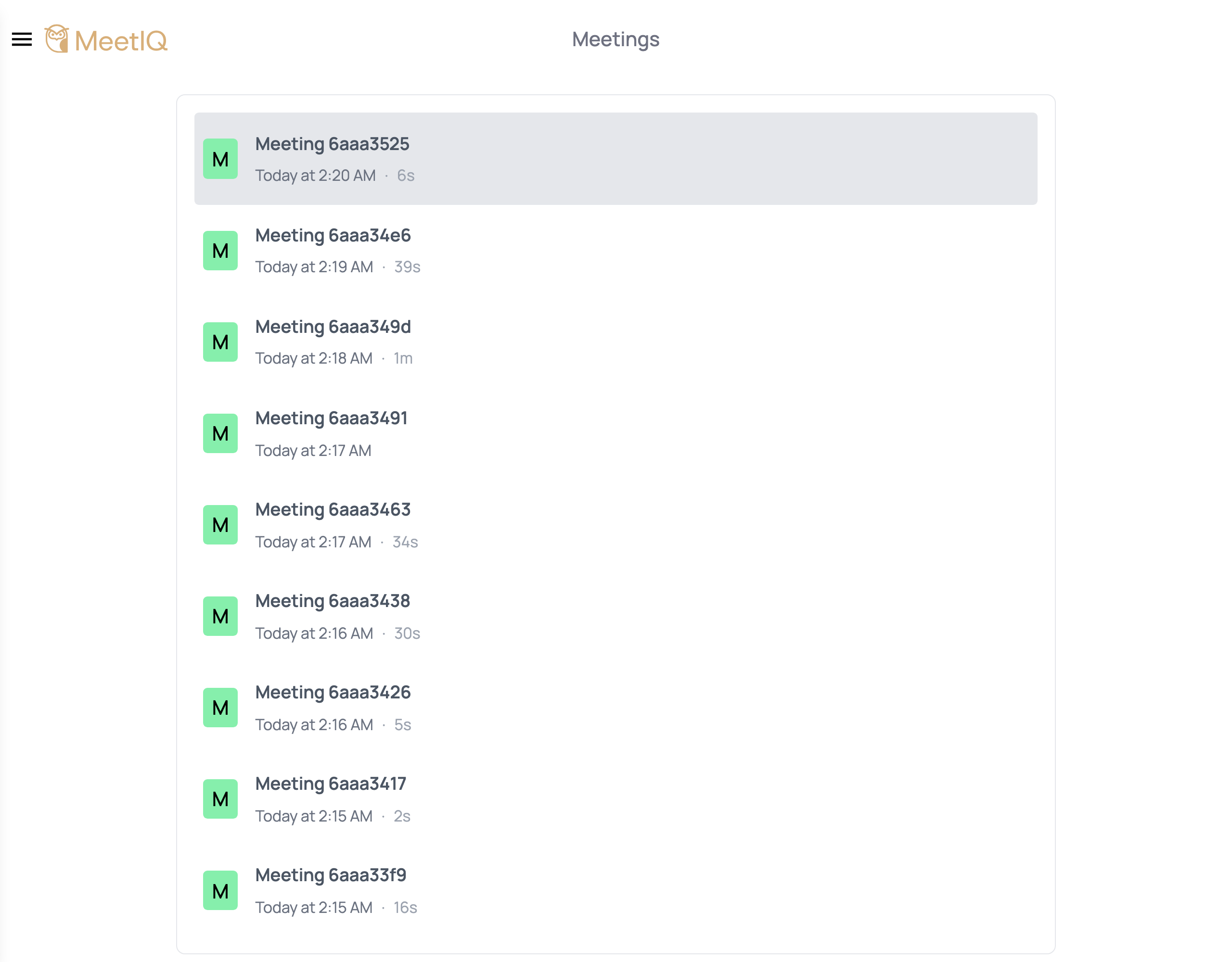
Pick a meeting from the list. Meetings appear in reverse-chronological order. If you haven’t recorded anything yet, you’ll see “No meetings yet.” with the hint “Start a recording to see your meetings here.”
-
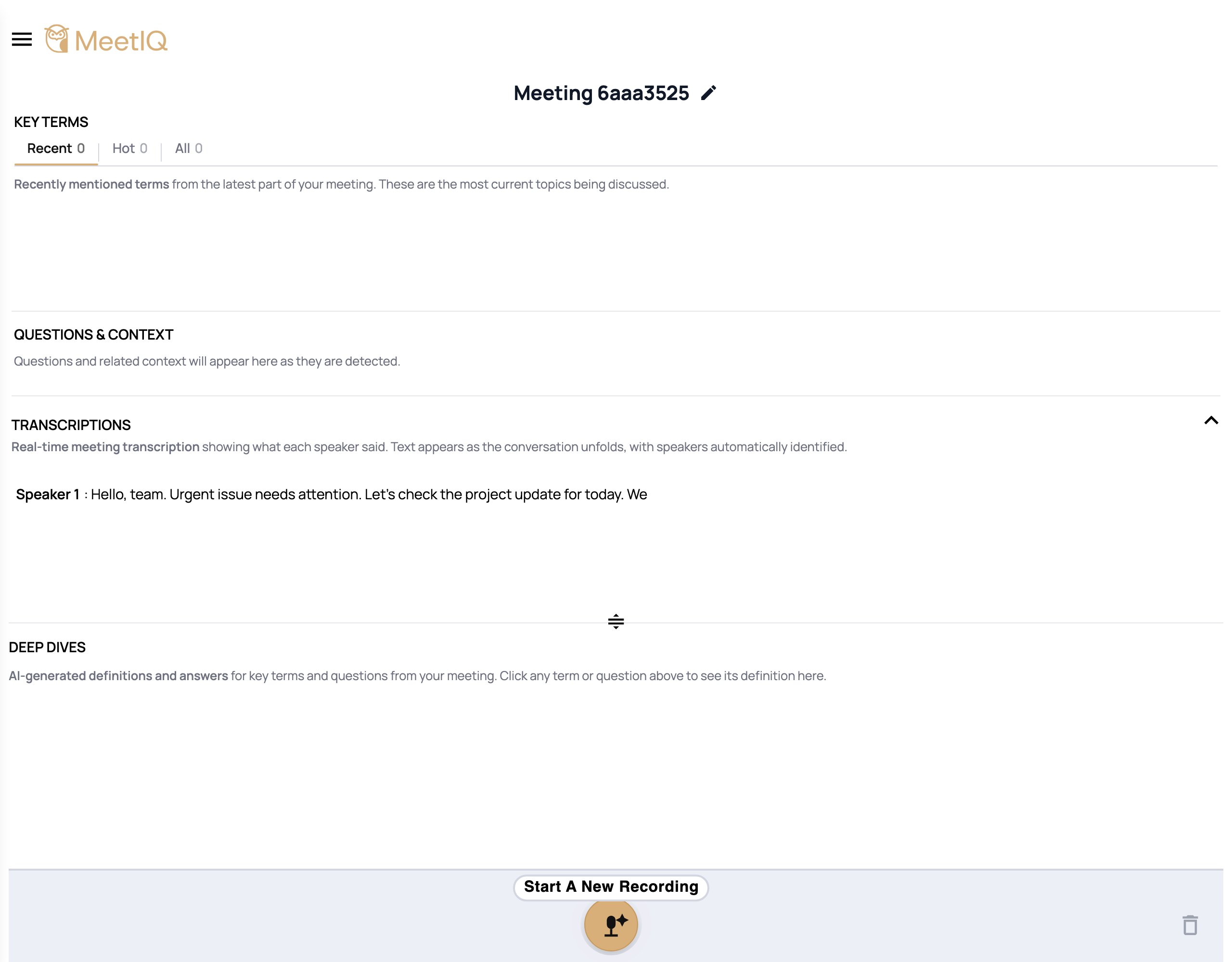
Review the meeting. Clicking a meeting reopens it in the same layout you saw while recording — Key Terms, Questions & Context, Transcription, and Deep Dive panels — but without the record controls. You can still click terms and questions to run new Deep Dives against the saved transcript.
-
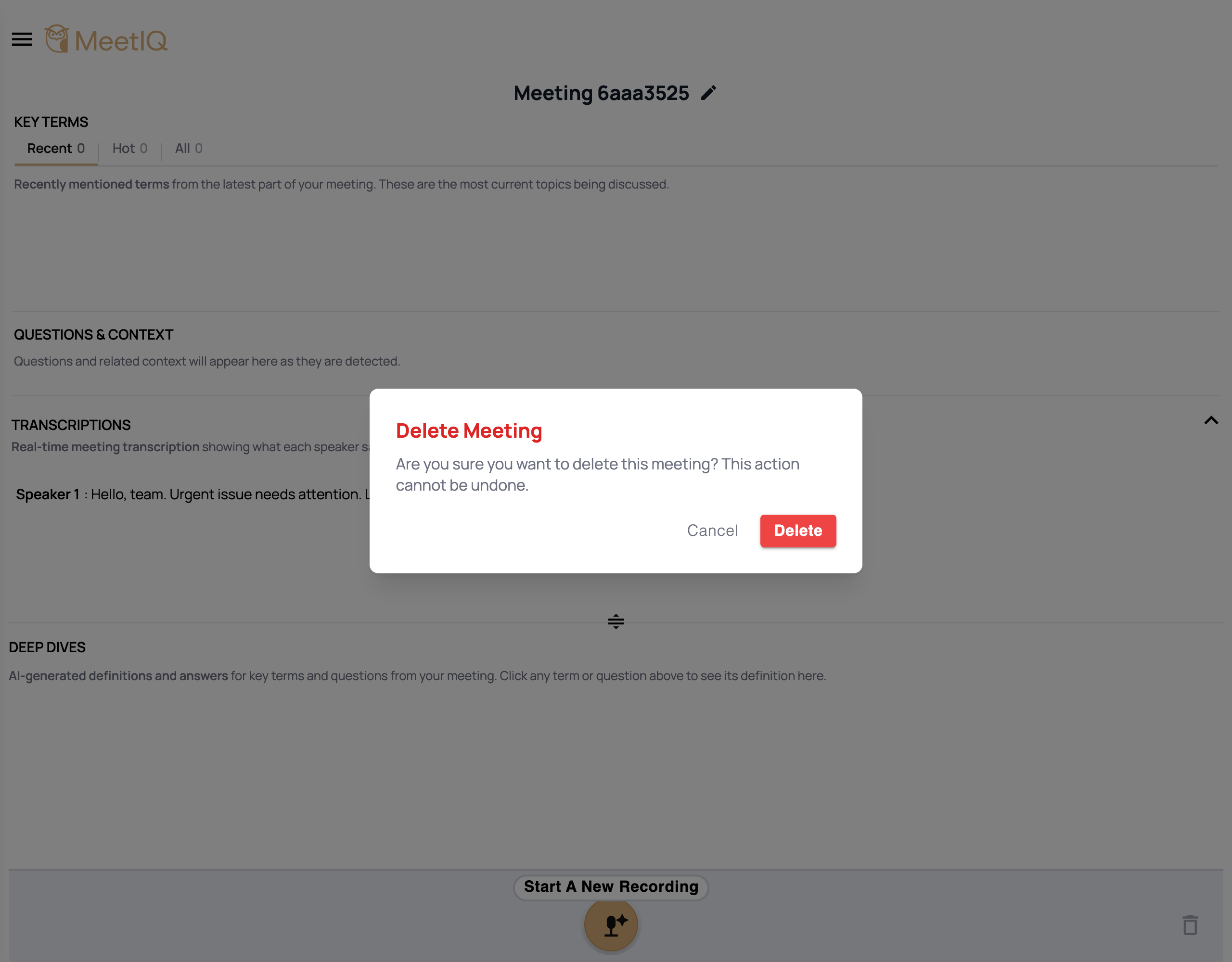
Delete a meeting if you no longer need it. The delete icon appears at the top of the meeting view. Clicking it prompts “Are you sure you want to delete this meeting? This action cannot be undone.” — confirm to remove it permanently.
How it works
Saving is automatic — the moment you stop a recording, the meeting is persisted locally and shows up in the Meetings list. There’s no separate “save” action to remember.
Past meetings behave like live ones for everything except recording. You can browse the transcript, click any key term or question, and MeetIQ will run a fresh Deep Dive against the saved transcript plus your currently-connected integrations. This means a meeting from three weeks ago can pick up new context from a Jira issue you linked yesterday.
Deletion is intentionally friction-heavy — a confirmation prompt every time, and no undo. Once deleted, the transcript, key terms, and any generated Deep Dives are gone.