User Guide
Recording a Meeting
Start, pause, and stop a recording — and understand what MeetIQ does with the audio while your meeting runs.
A meeting in MeetIQ is one recording. This page walks you through starting a meeting, watching the live transcript populate, and stopping cleanly so the meeting is saved and searchable later.
What you’ll learn
- Start a new recording from the home screen.
- Read the status pill at the bottom of the window to see whether the meeting is live, paused, or saved.
- Understand what MeetIQ captures and how it processes the audio.
- Pause, resume, and stop a meeting cleanly.
Walkthrough
-
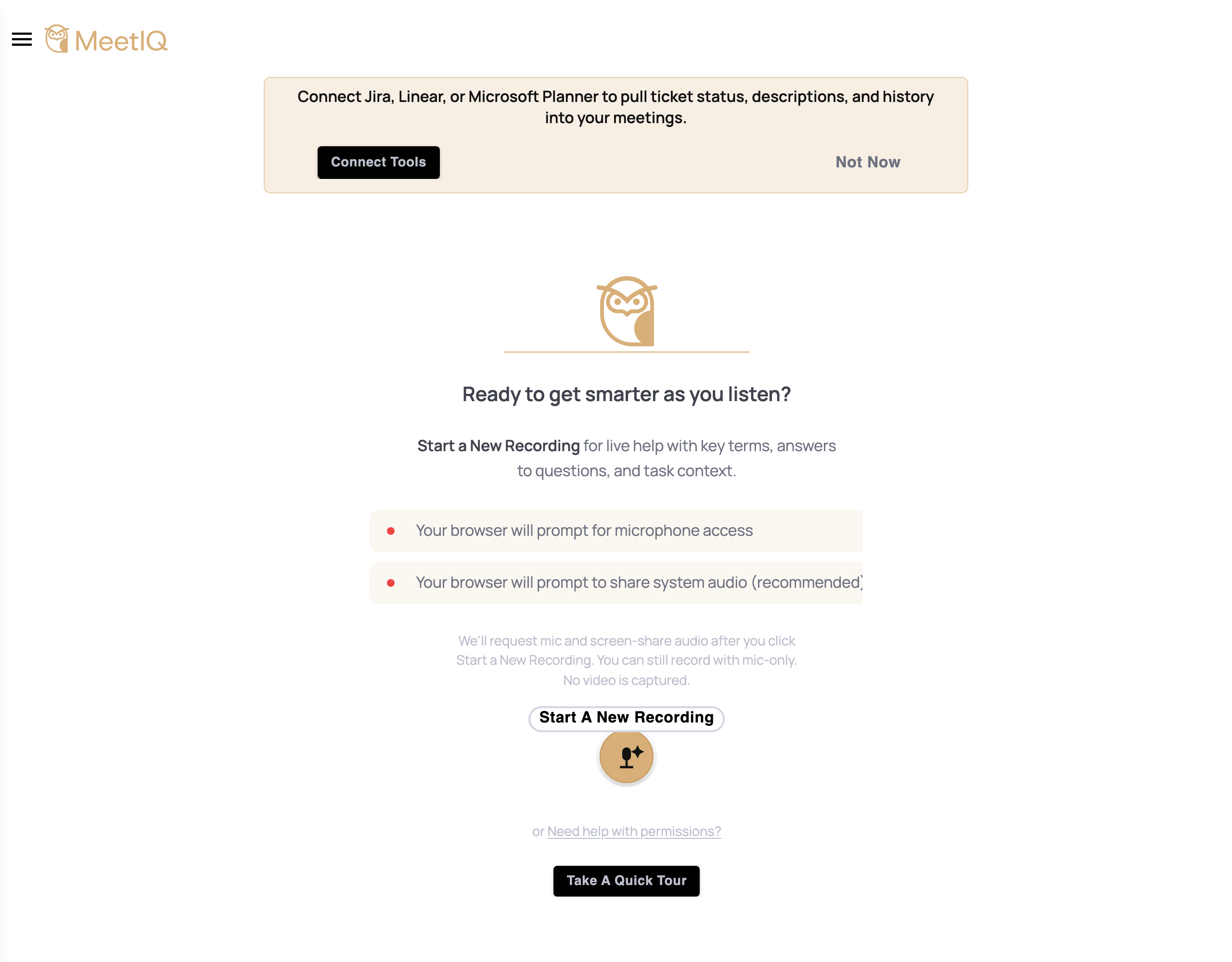
Click the Record button on the home screen. It’s the large button at the bottom of the window. On click, MeetIQ immediately starts listening to both your microphone and your system audio.
-
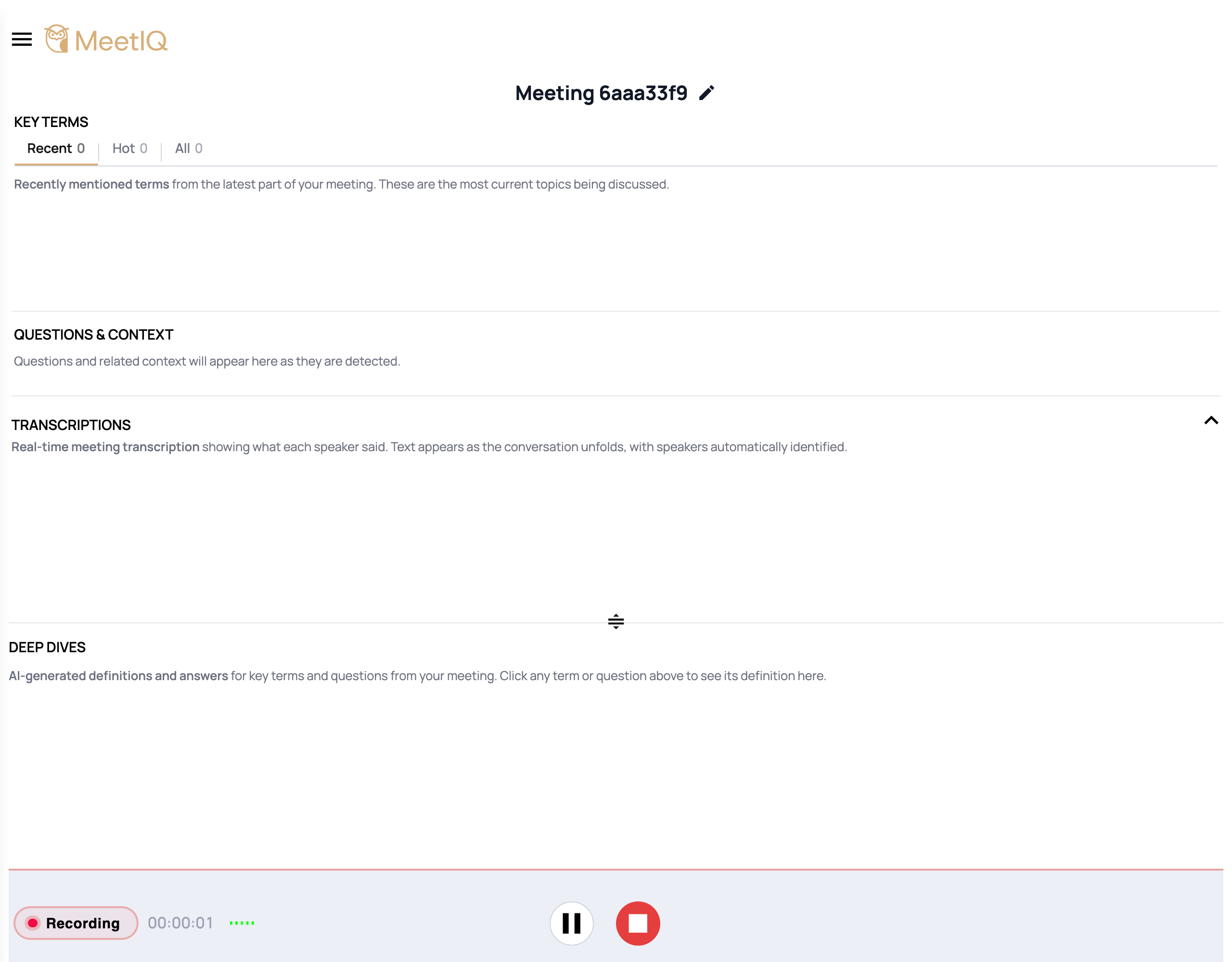
Watch the status pill at the bottom flip to “Recording”. The pill shows a red dot, the elapsed-time counter starts, and a small equalizer animates alongside — that’s your at-a-glance confirmation MeetIQ is actively capturing.
-
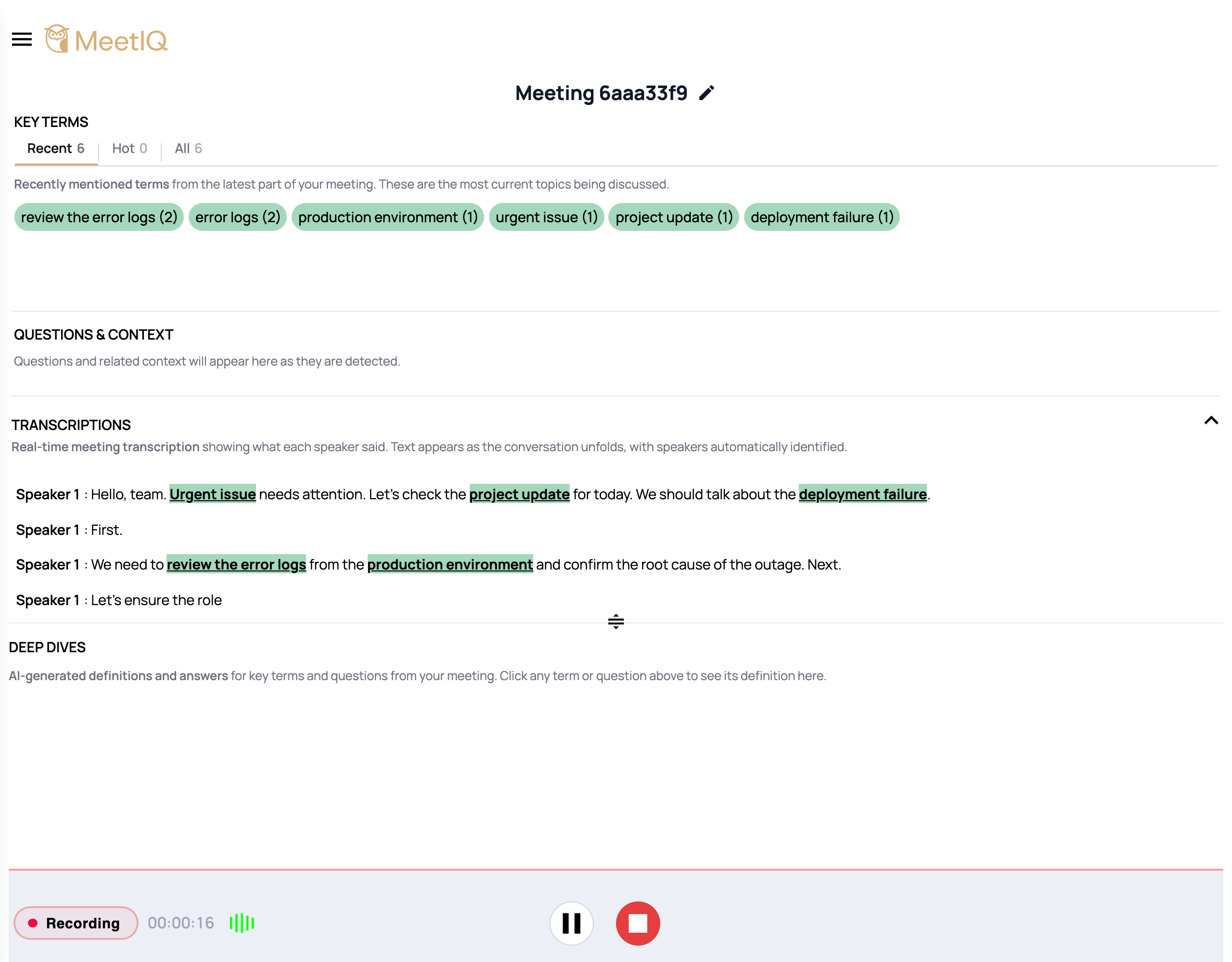
Speak — transcription appears within a few seconds. The Transcription panel populates in real time as MeetIQ recognizes speech. Speaker turns are separated automatically.
-
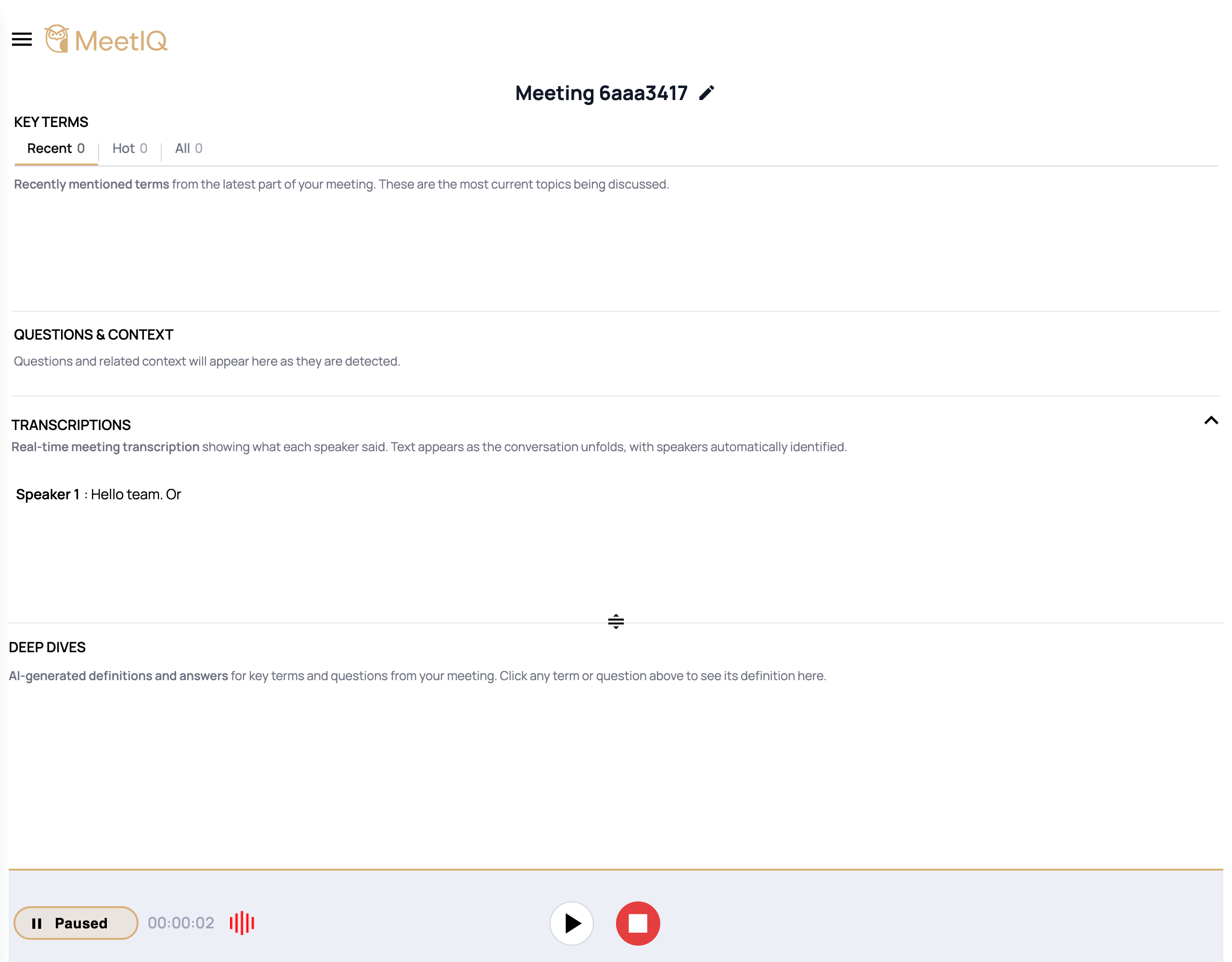
Pause anytime. Click the pause button to temporarily stop capturing without ending the meeting. The status pill switches to “Paused” with a gold pause icon so it’s obvious the meeting isn’t being transcribed.
-
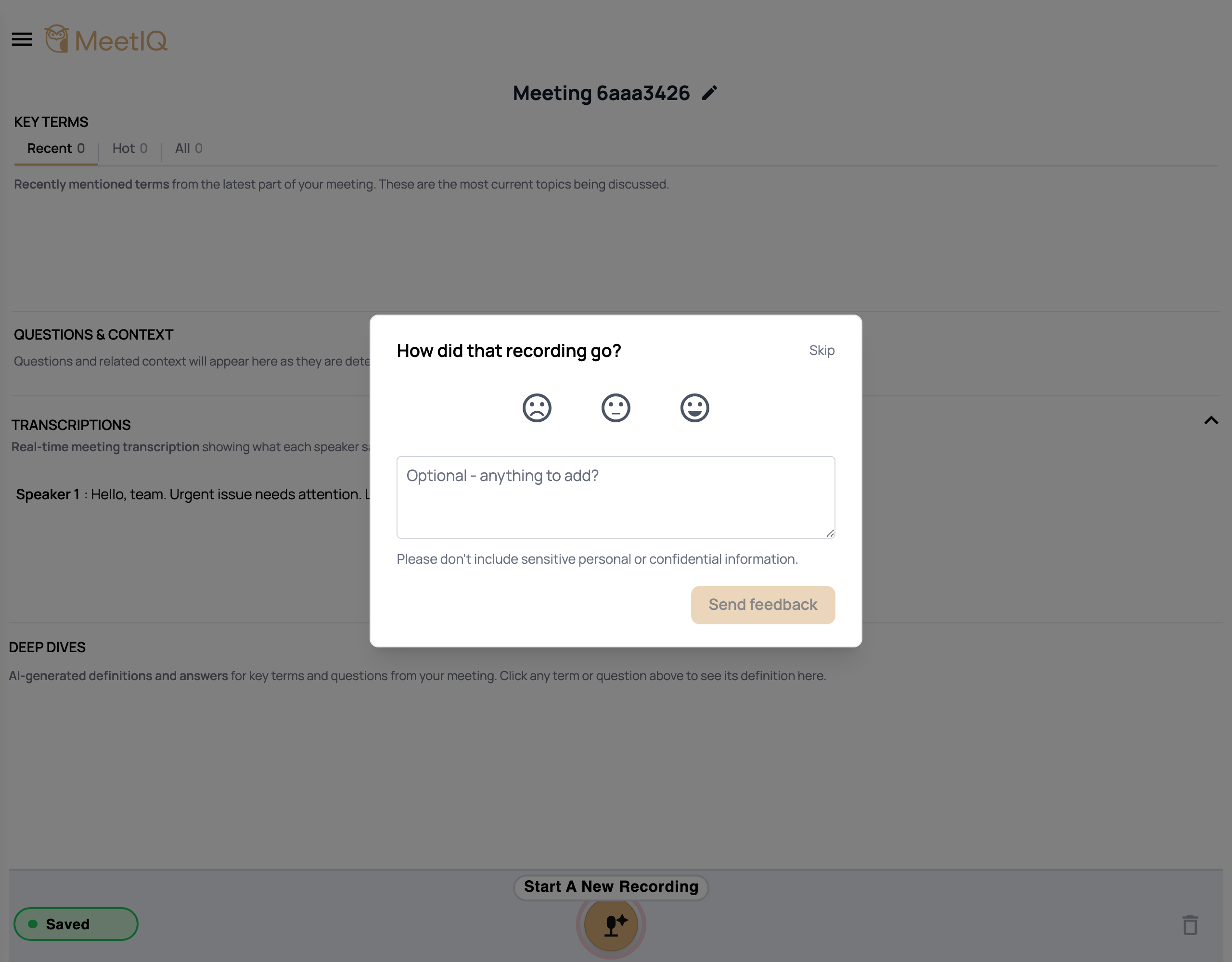
Click Stop when the meeting ends. The status pill flips to “Saved” with a green check and the meeting persists automatically. You’ll find it later under Meetings in the sidebar.
How it works
MeetIQ captures two audio streams — your microphone (what you say) and your system output (what the other participants say through your speakers or headphones). Both feed into Deepgram for transcription, and OpenAI extracts the important terms and questions live as the meeting unfolds. Everything runs on your device; no bot appears in the call and no recording is uploaded to a shared service.
The status pill at the bottom of the window is the single source of truth for what’s happening — “Recording” means live capture is on, “Paused” means capture is stopped but the meeting is still open, and “Saved” means the meeting has been persisted and you can safely close MeetIQ or start something new.
Once saved, a meeting is available under Meetings in the sidebar. From there you can revisit the transcript, re-open the extracted key terms, and run Deep Dives against past discussion — see the Meetings page for how past meetings are organized.